

Free lesson1 of 115 min video4 question quiz
Design JSM status pages that reach the right people
A 15-minute lesson that designs Jira Service Management status pages for a company with 3 products on one shared platform, builds them on a demo site, and runs an incident through them: one ticket, one update, and only the affected products marked. It also covers closing out, stakeholders, subscribers and webhooks, and a phased rollout.

- Level
- Intermediate
- Products
- Jira Service Management
- Format
- On demand, free, no sign-up
A page is an audience
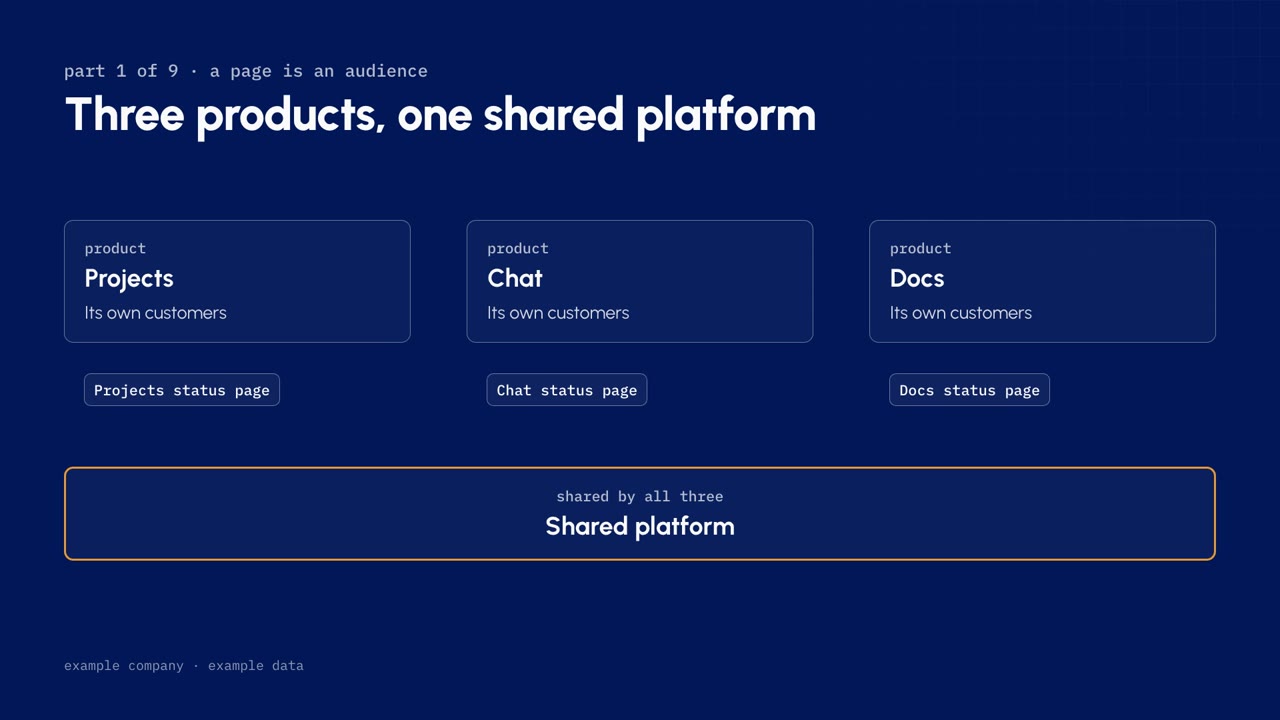
Most teams start with their systems and make a page for each one. Start with your audiences instead: ask who needs to hear about an outage, and where they already look.
The example in this lesson is a software company with 3 products: Projects, Chat and Docs. Each product has its own customers and its own status page. Underneath all 3 is a shared platform, with sign-in and notifications. That shape is common, and it is where status pages get hard.
| One page means | So |
|---|---|
| One web address | Customers bookmark it and support links to it |
| One set of customers | Everything on it is news that audience needs |
| One subscriber list | Every update reaches everyone subscribed to it |
If two groups of customers never need the same news, they need different pages. To see the pages on a site, open Operations, then Status pages.
Pages, components and incidents
JSM builds every status page from 3 things.
| Part | What it is |
|---|---|
| Page | The audience: one address, one set of customers, one subscriber list |
| Component | The thing that broke, backed by a service in your services registry |
| Incident | One record with one lifecycle, linked to one page and one Jira work item |
- Open the page's menu and choose Edit page.
- Choose the Components tab. Each component points at a service in your services registry, so the page speaks the same language as your incidents.
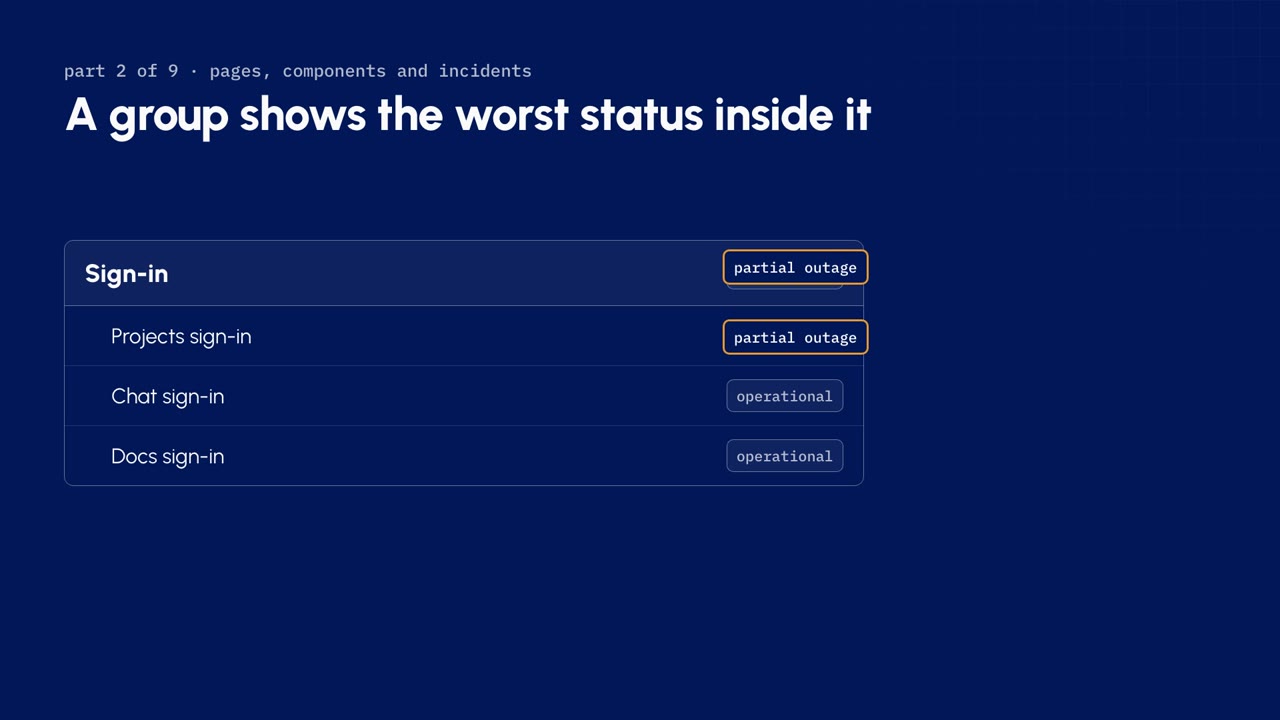
Components can also be grouped. A group shows the worst status of anything inside it: if one component in the group is at partial outage, the group shows partial outage. That is the feature this whole design is built on.
Native status pages come with the Service Collection Enterprise plan. Source: Atlassian's status pages documentation.
One incident, one page
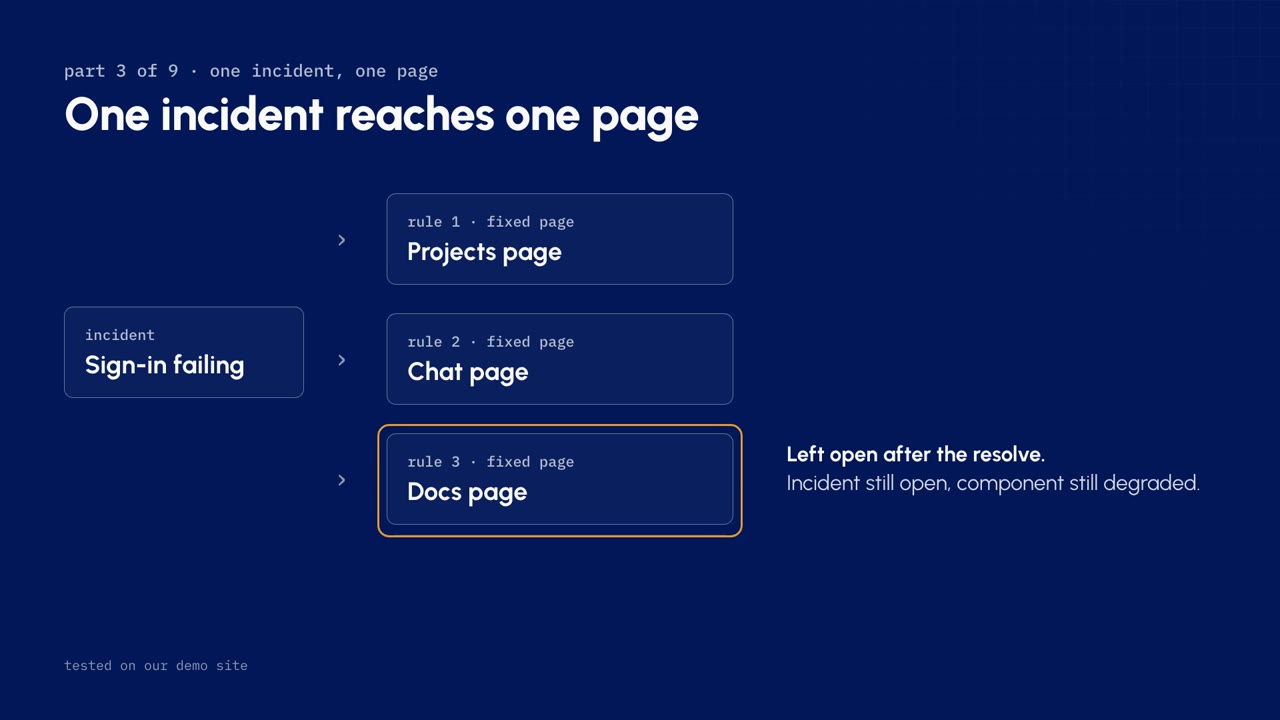
This is the rule that shapes everything else. Once an incident is linked to a status page, the page is locked: the Add status page button is gone, and Send update stays on the same page. Atlassian's docs say it plainly: you can link only one status page per incident. Source: Post stakeholder updates directly from incidents.
Teams often try to work around it with automation that copies an incident to every product page. We tested that on the demo site:
| What we tried | What happened |
|---|---|
| One rule that picks the page | The automation action's page is a fixed picker, so every page needs its own rule |
| Copying one outage to 3 pages | After the resolve, one page was left with an open incident and a degraded component, and nothing closed it |
So don't fight the rule. Design with it.
Build a platform page for shared services
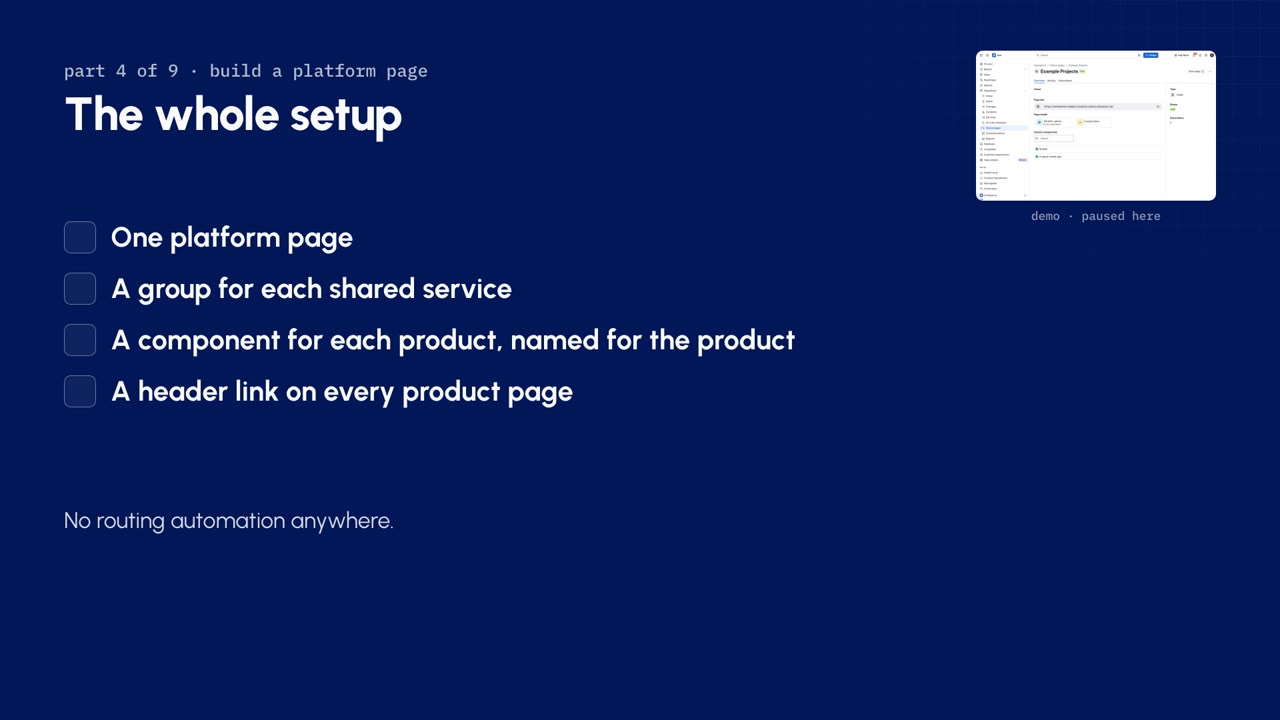
The pattern: shared services go on one platform page. Each shared service is a group, like Sign-in, and inside the group is one component for each product it serves. Now one incident on one page can say exactly which products are affected. Each product page keeps its own components, plus a header link to the platform page.
- In Status pages, choose Create status page, then Create under Public.
- Type the name and a short, readable web address, then choose Create. JSM saves the new page as a draft, so nothing is public yet.
- Open the Components tab and choose Add component. Name it for the shared service, such as Sign-in.
- Choose Add subcomponents. That turns the component into a group.
- Name the first subcomponent for its product, such as Projects sign-in, and pick its service from the services registry. Choose Save components.
- Add the other products the same way, and a group for each other shared service. A service that never fails by product, like an admin console, stays a single component.
- Choose Back, open the page's menu and choose Publish page, then Publish.
- On each product page, open Edit page, then Appearance, then Page title. Choose Add link, type a label such as Core services status and the platform page's address. Save the draft and publish.
Watch out. Name every component for its product, like Projects sign-in, not just sign-in. Subscribers and webhooks see the component name on its own, without the group around it.
| The whole setup |
|---|
| One platform page |
| A group for each shared service |
| A component for each product, named for the product |
| A header link on every product page |
No routing automation anywhere.
Run an incident from one ticket
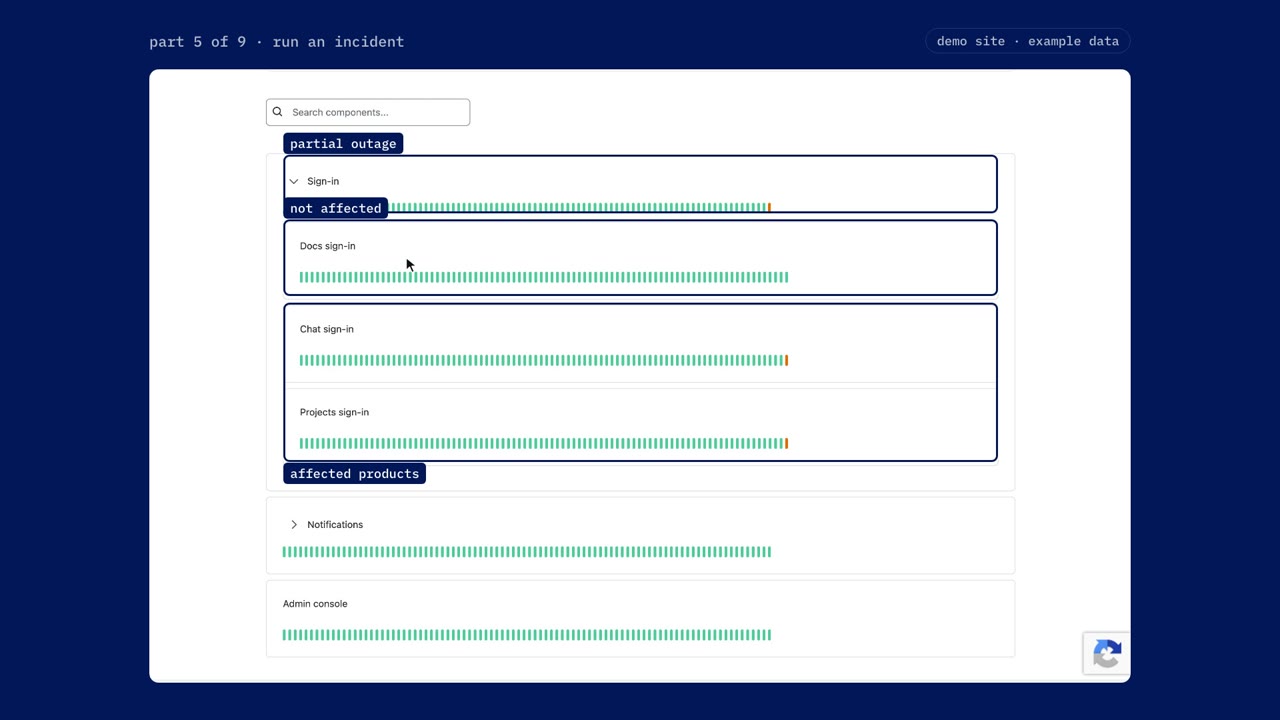
In the example, sign-in is failing for Projects and Chat, and Docs is fine.
- Open your incidents and choose Create. Type a clear summary that names the service and the products it affects, so anyone scanning the queue understands it. Set the affected service, then choose Create.
- Open the new incident, expand its Status pages panel and choose Add status page.
- Pick the platform page. The status starts at Investigating.
- Type a title that names what users notice, not the cause. Type the message customers will see: what is affected, and when they will hear next.
- Open the Components tab and expand the group. Set each affected product's component, here Projects and Chat, to partial outage. Leave the others operational. That is the only new step compared with a normal incident.
- Choose Send update.
If every product were down, set the group row instead. It sets every component in the group in one action.
On the public platform page, the Sign-in group shows partial outage, Projects and Chat are marked, and Docs is still green: one incident, one update, and only the right products. The product page's header link sends customers straight there.
| Status | When to post it |
|---|---|
| Investigating | The first update |
| Identified | You know the cause |
| Monitoring | A fix is in and you are watching it |
| Resolved | It's over |
Each later update uses Send update in the same panel and goes to the same page.
Close it out cleanly
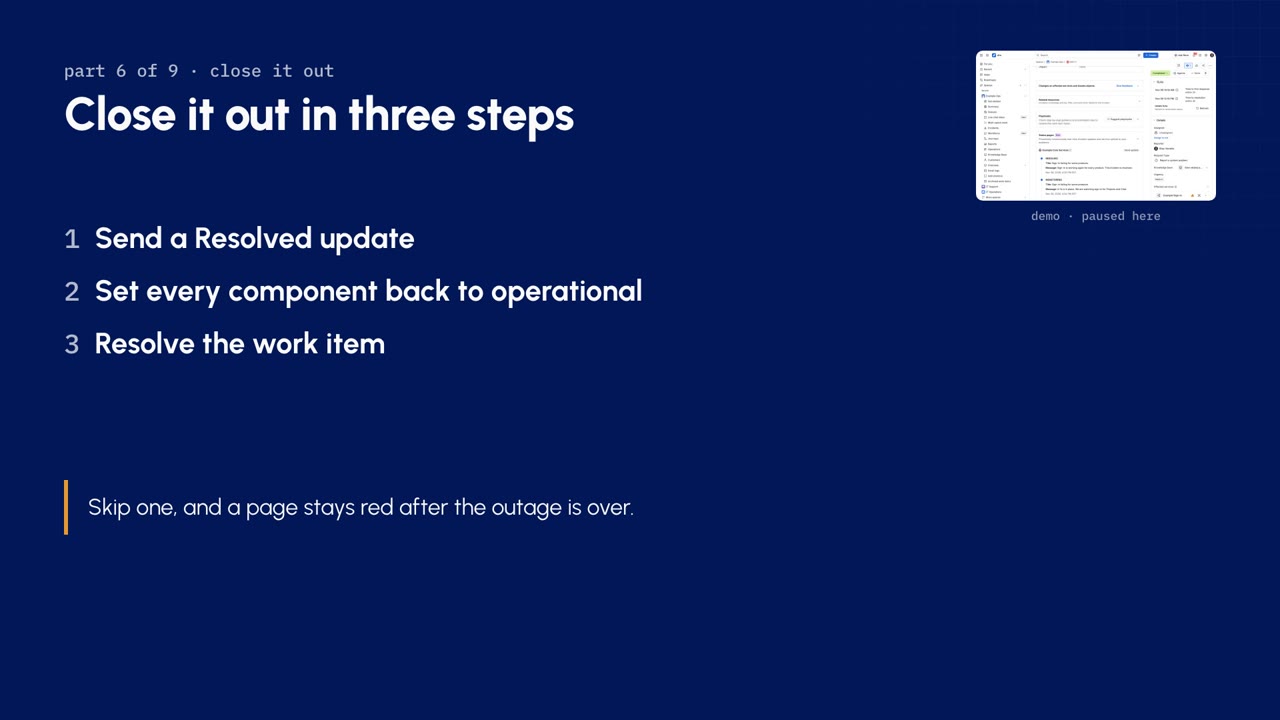
- Choose Send update, set the status to Resolved, and type a closing message that says what was fixed and that it's over.
- Open the Components tab, expand the group and set each affected component back to operational. Choose Send update.
- Resolve the work item itself: open its status, choose Resolve, pick a resolution such as Done, and choose Update.
Watch out. Resolving the incident does not reset the components. Skip step 2 and a page stays red after the outage is over. Put all 3 steps in your runbook.
Internal audiences use stakeholders
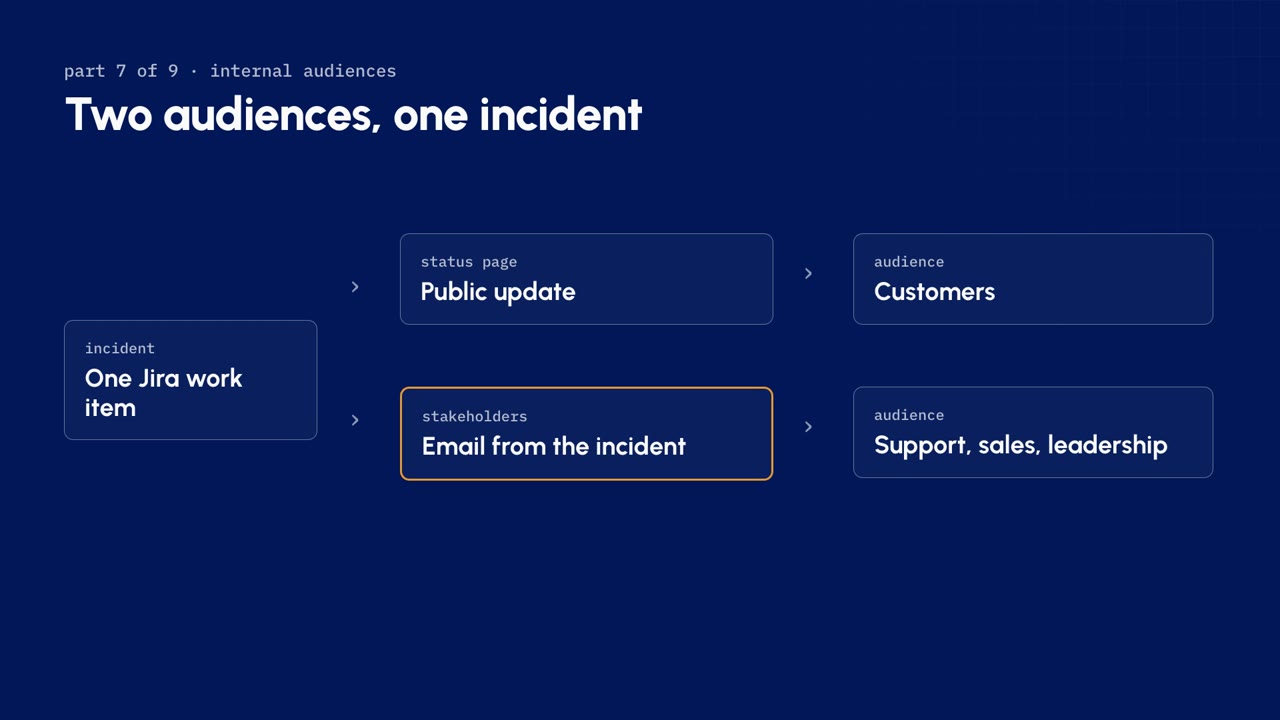
Support, sales and leadership need more detail than customers, and sooner. Since an incident can't reach a second page, use stakeholders: they get updates by email, straight from the incident.
- On the incident, open the Stakeholders panel.
- Add the people or teams who need to know.
- Choose Notify stakeholders and write the internal update.
| Channel | Audience | From |
|---|---|---|
| Status page update | Customers | The incident |
| Stakeholder email | Support, sales, leadership | The same incident |
Stakeholders are on the Premium and Enterprise plans, and they don't need a license or access to the incident. Atlassian allows customers and partners as stakeholders too, so treat them as a separate email channel rather than an internal-only one. Sources: What is stakeholder communications? and Send notifications to incident stakeholders.
Plan subscribers and in-product status
Before you move anyone, count your subscribers. Each site supports up to 10,000 subscribers in total, across every page combined, and active, pending and inactive subscribers all count. Export the counts from your current pages first: they decide your migration order. Source: Manage status page subscribers.
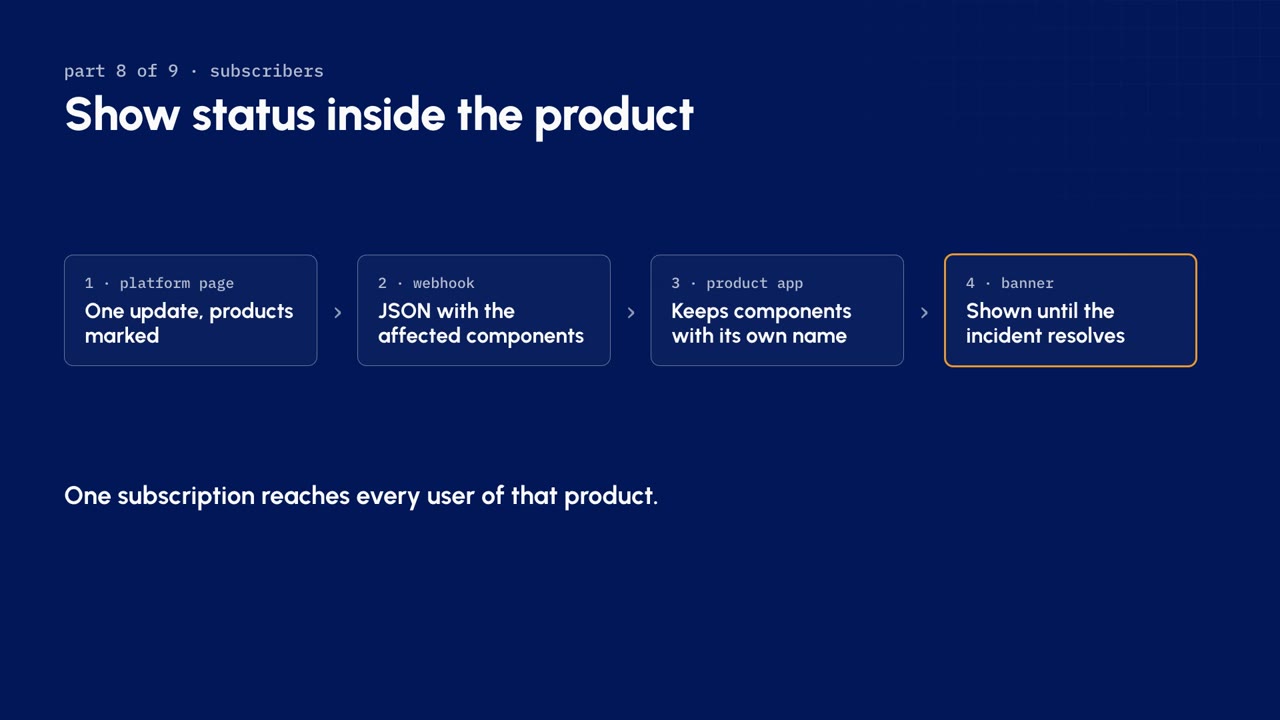
The best way to stay inside the limit is to show status inside your product:
- Each product app subscribes once to the platform page by webhook.
- JSM sends every update as JSON, with the affected components by name and status.
- The app keeps only the components with its own name.
- It shows a banner until the incident resolves.
One subscription reaches every user of that product.
To subscribe a webhook, open the public page, choose Subscribe to updates, then Webhook. It asks for the endpoint and an email for failed deliveries. Subscriptions are email or webhook only. Source: Subscribe to a public status page using webhooks.
For business customers, subscribe one operations address, not every member of staff.
Before and after, gaps, and rollout
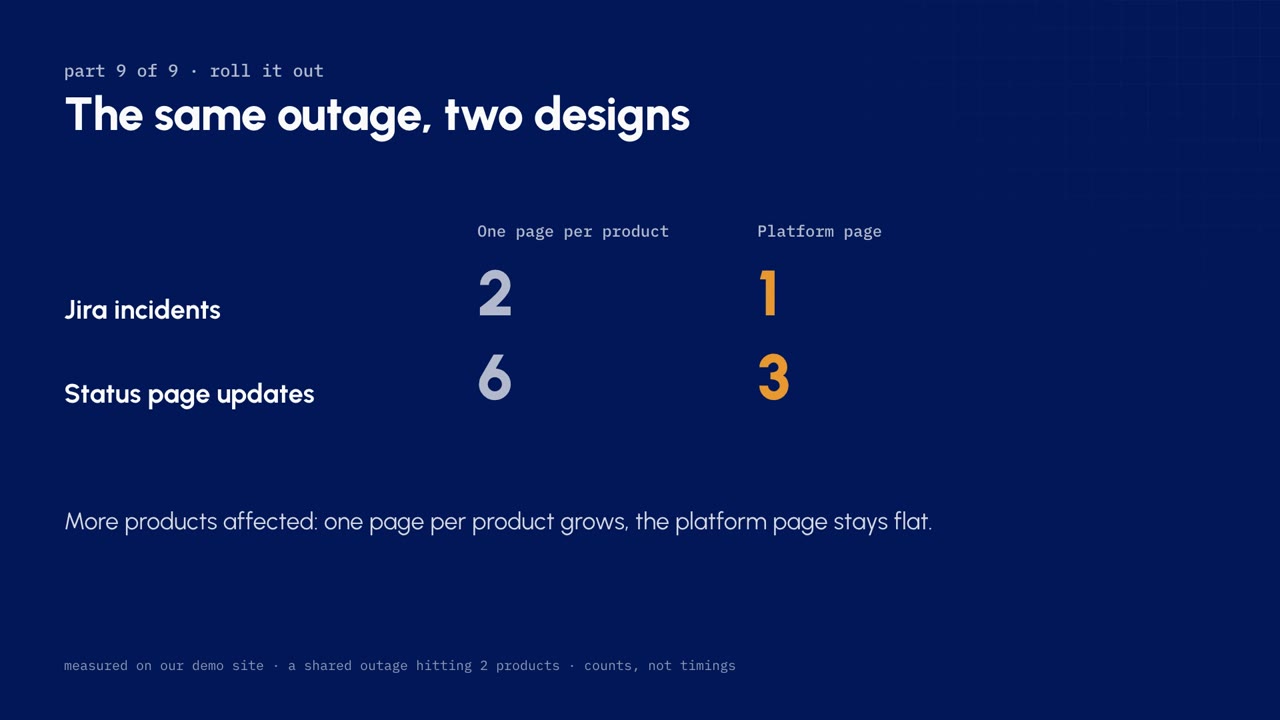
On the demo site, the same shared outage hitting 2 products took:
| Design | Jira incidents | Status page updates |
|---|---|---|
| One page per product | 2 | 6 |
| Platform page | 1 | 3 |
These are counts on demo data, not timings. As more products are affected, one page per product grows and the platform page stays flat.
| Gap | Cover |
|---|---|
| Product pages stay green during a shared outage, because it shows on the platform page | The header link and the in-product banner |
| JSM's own pages don't offer component subscriptions yet, so a subscriber gets the whole page | Webhooks filtered by component name |
Roll it out in 4 phases, each with a gate:
| Phase | Work | Gate |
|---|---|---|
| Prepare | Confirm who owns each page and count subscribers | The counts fit the limit |
| Build | The platform page, the header links and the runbook | A test incident run end to end |
| Pilot | A few products on real incidents | The runbook is tuned |
| Expand | The rest of the products in waves | Each old page retired as its product moves |
Check what stuck
4 questions on this lesson. Pick an answer to see whether it is right, and why. Nothing is sent anywhere and there is nothing to sign up for.
Who teaches it

Riley Venable
VP of Services, Atlas Bench
Full-stack engineer, Atlassian Certified Instructor, and Atlassian Community Champion who works on the layer underneath the tools: identity, infrastructure, and the systems that decide whether AI can be trusted with them.
Keep going
Incident communication in Jira Service Management
A free, self-paced course for Jira Service Management admins and incident managers on telling the right people about an outage: status pages, stakeholders and subscribers. Each lesson is a video with the concepts written out beside it and a quiz to check what stuck.
ServiceAtlassian Cloud Migration Services
Atlassian Platinum Solution Partner moving Jira, JSM, and Confluence from Data Center to Cloud before the March 28, 2029 end of life. Identity first.
ServiceService management
Jira Service Management implementation for ITSM and change management: request catalog, change control, and assets, rolled out to the teams who use them.
ProductService Collection
What Atlas Bench does with the Atlassian Service Collection: consolidating service management, assets, knowledge, and alerting onto one entitlement.
ProductJira Service Management
What Atlas Bench does with Jira Service Management: catalog rationalization, change control, assets and CMDB, identity, and consolidation on one platform.