

Lesson 1 of 114 min video5 question quiz
Find the automation rules eating your step allowance
A fourteen-minute lesson that finds the automation flow spending the most steps on a Jira demo site and cuts it down four ways: a tighter trigger, a JQL condition first, the right scope and fewer branches. On the way it explains how Atlassian counts steps and why branches multiply them, and shows the same twelve edits going from 84 steps to 18.

- Level
- Intermediate
- Products
- Jira
- Format
- On demand, free, no sign-up
How steps are counted
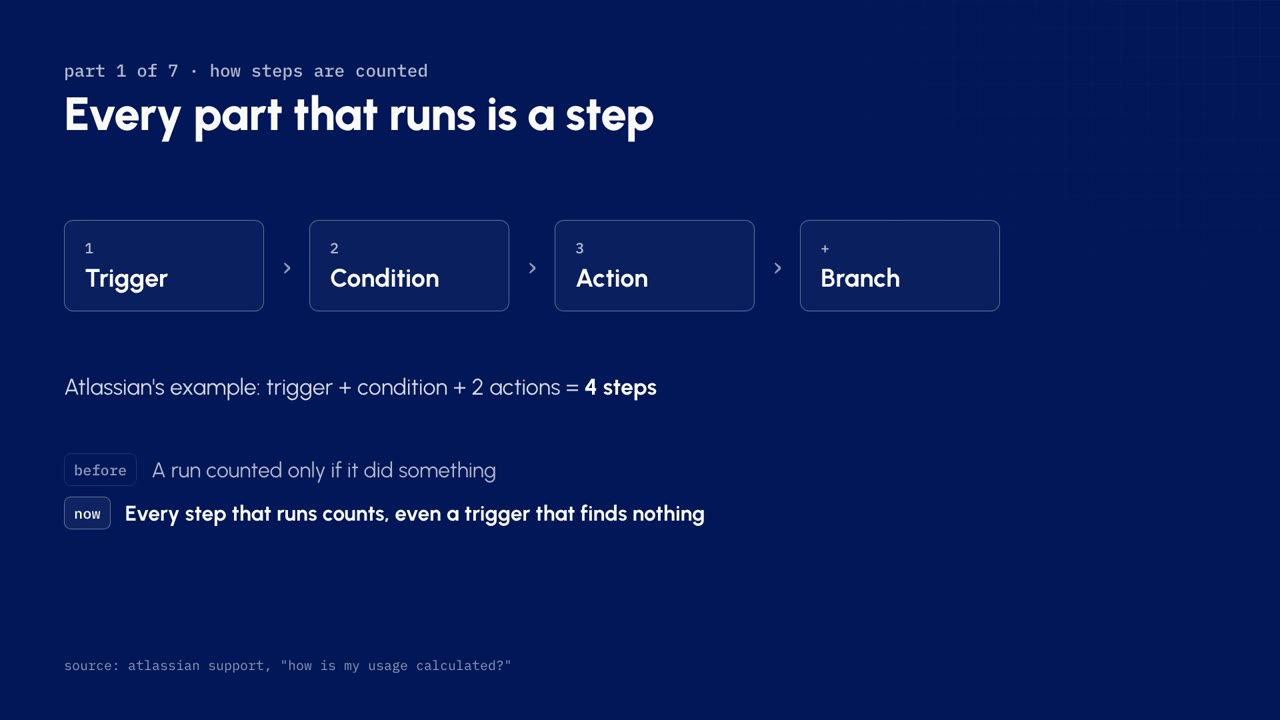
An automation step is any part of a flow that runs: the trigger, each condition, each action and each branch. Atlassian's own example is a trigger, one condition and two actions, which is four steps.
| Part of the flow | What it costs |
|---|---|
| Trigger | One step every time it fires, even when it finds nothing to do |
| Condition | One step. When it fails, nothing after it runs, so nothing after it counts |
| Action | One step each time it runs |
| Branch | One step, plus everything inside it once for every work item it finds |
Branches are where steps pile up. A branch over five child work items, with three actions inside, is fifteen action steps plus the branch itself.
Watch out. Before, a run only cost something if it did something. Now every step that runs counts, so a flow that starts on every edit and then finds nothing still spends its trigger and every branch it enters.
The allowance is pooled across the whole organization: every app and every site draws from one monthly pool, and unused steps do not roll over. Paid Jira plans include 400, 750 or 1,000 steps per user per month, by plan. Extra steps are charged per 1,000, extra usage is on by default, and admins get alerts at 80 and 100 percent. Billing for extra steps starts on 3 December 2026, or at your first renewal after that date. Sources: Atlassian, How is my usage calculated? and usage-based pricing.
Find the noisy flow
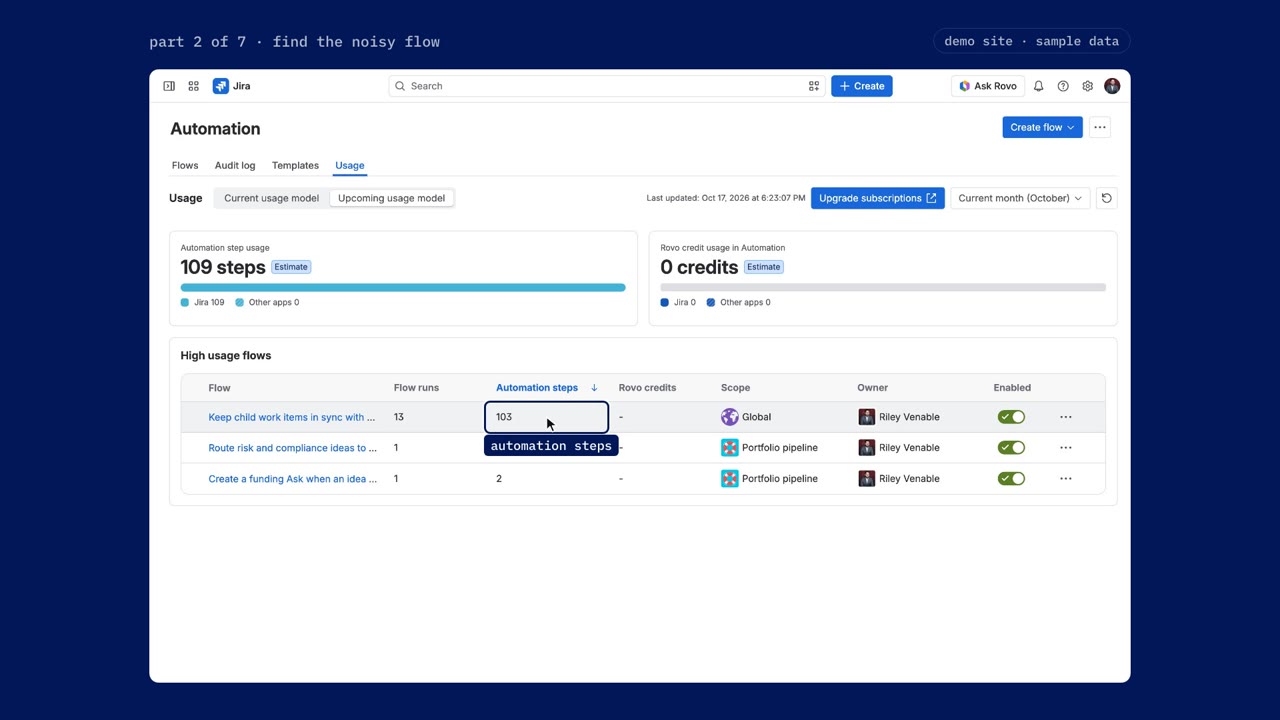
- Open Jira settings, then System. Under Automation, choose Global automation.
- Open the Usage tab and switch to the upcoming usage model. That is the steps view.
- Read the two cards: automation steps this month, split by app, and Rovo credits used by automation. Both are estimates.
- Under high usage flows, sort by automation steps, highest first. The flow at the top is where to start.
| Flow on the demo site | Flow runs | Automation steps | Steps a run |
|---|---|---|---|
| Keep child work items in sync with their epic | 13 | 103 | Almost 8 |
| The other flows | 1 each | 2 to 4 | 2 to 4 |
Watch out. The current usage model counts only runs that did something. On it, the same flow in the same month showed four runs, which is why it never looked like a problem. Switch to the upcoming model to see steps.
To see what one run spent, open the flow, then its audit log, and expand a run. A story edit fired the trigger, then three branches ran and found nothing to do: four steps for an edit the flow never needed to see.
Read the flow
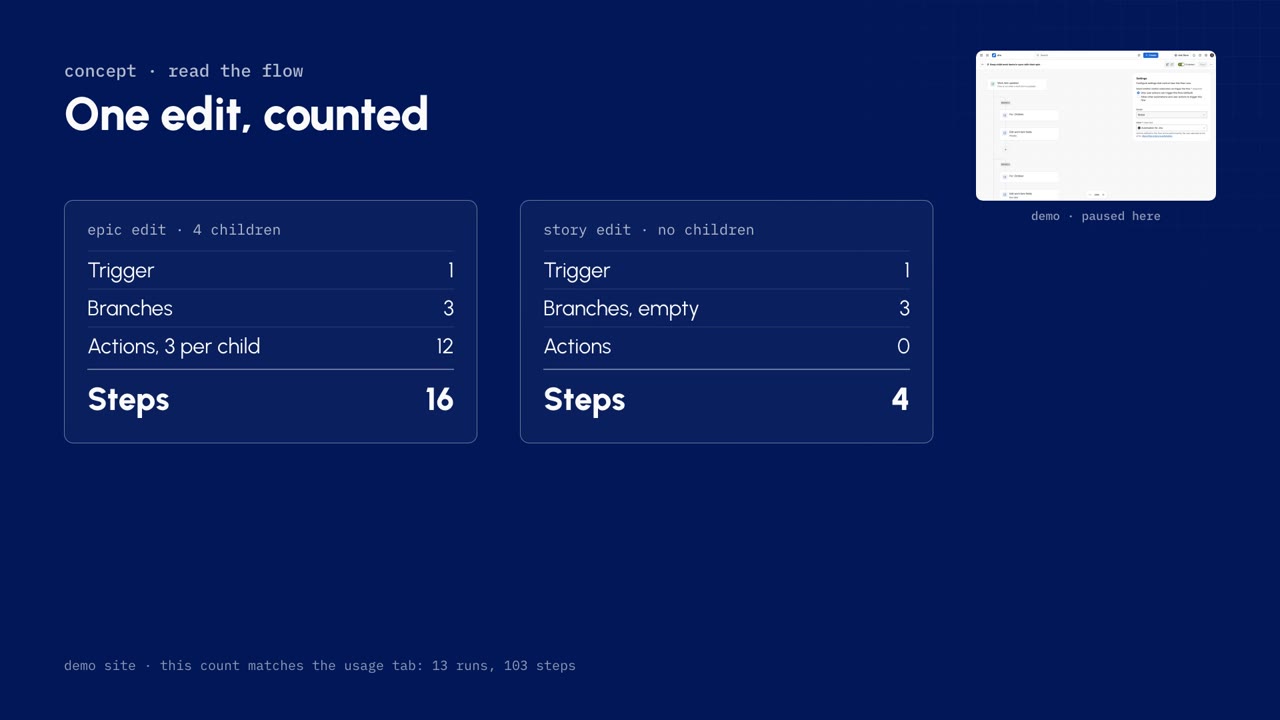
Read a flow from the top, one step at a time, and ask what each part lets in.
| Part | On the demo flow | What it means |
|---|---|---|
| Trigger | Work item updated | An edit to any field, on any work item, starts the flow |
| Condition | None | Every edit goes straight into the branches |
| Branch 1 | For: Children, copy priority from the epic | Runs once for every child |
| Branch 2 | For: Children, copy due date | Loops over the same children again |
| Branch 3 | For: Children, add a comment | Loops over them a third time |
| Scope | Global | An edit in any space starts the flow, even spaces with no epics |
| One edit | Trigger | Branches | Actions | Steps |
|---|---|---|---|---|
| An epic with four children | 1 | 3 | 12, three per child | 16 |
| A story, no children | 1 | 3, empty | 0 | 4, and nothing changes |
The scope is under the menu at the top right of the flow, then Settings.
A tighter trigger
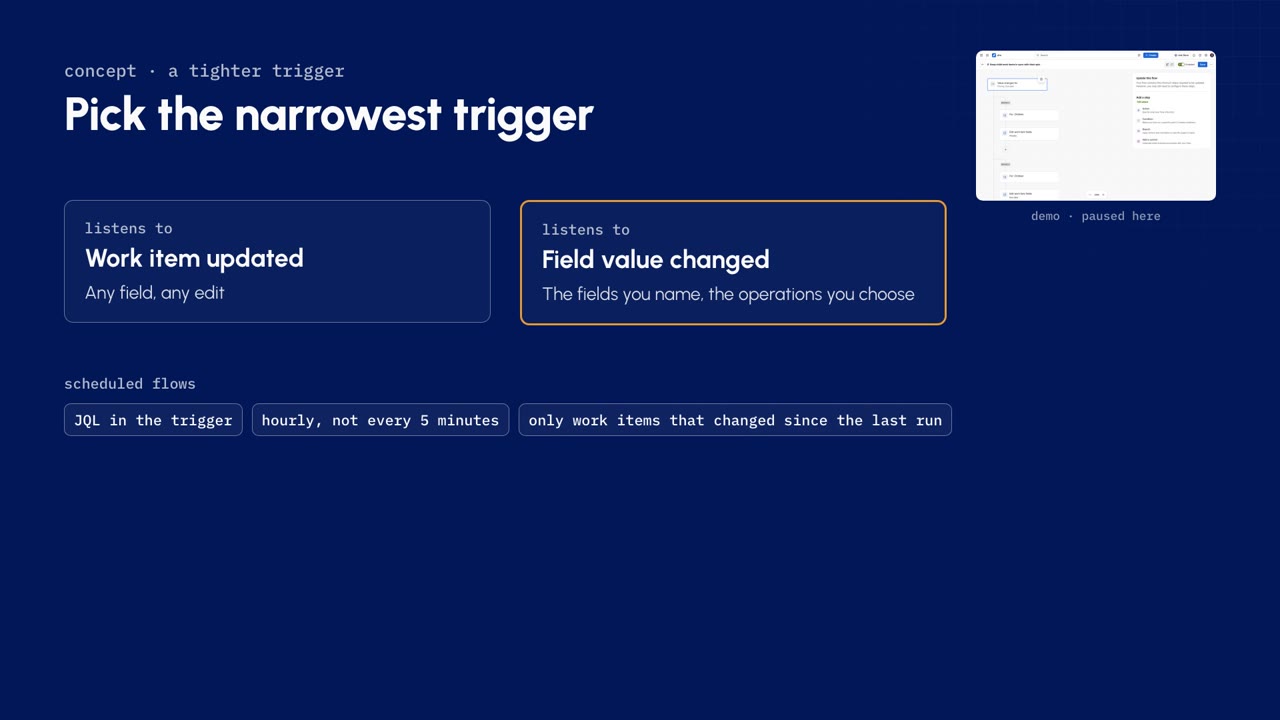
- Select the trigger. The panel on the right shows what it listens to: every update.
- Click the delete icon on the trigger. The list of triggers opens.
- Search for field value changed and select it.
- In the fields to watch, type priority and select it, then type due date and select that too.
- Leave change type on any changes to the field value. That covers a value being added, removed or changed.
- Under For, choose edit work item. Creating a work item, or moving it through the workflow, no longer starts the flow.
- Click next. The trigger card reads: value changes for priority, due date.
| Trigger | Listens to |
|---|---|
| Work item updated | Any field, any edit |
| Field value changed | The fields you name, for the operations you choose |
Rule of thumb. Pick the narrowest trigger that still catches the change you care about. For scheduled flows, the same idea: put the JQL in the trigger, run hourly instead of every five minutes, and include only work items that changed since the last run.
A JQL condition first
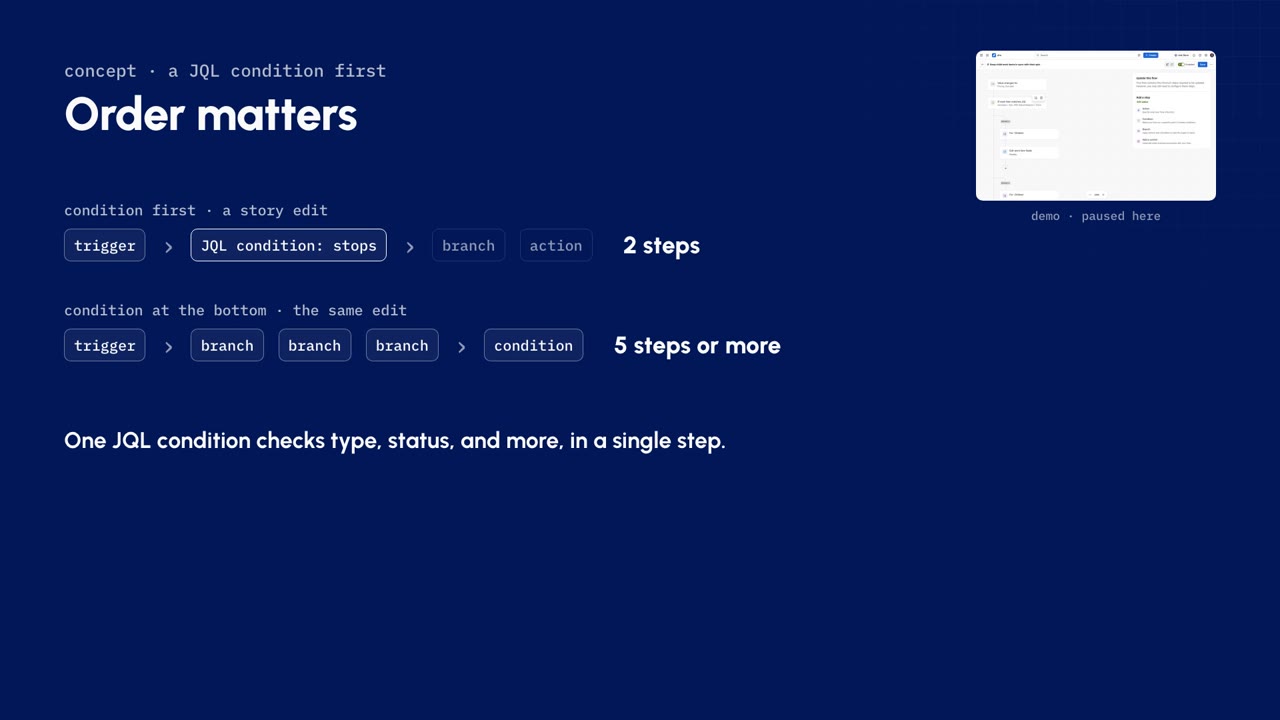
- Click the plus just below the trigger card.
- Choose condition, then JQL condition.
- Enter the query for the work items this flow is for. On the demo site, open epics only:
issuetype = Epic AND statusCategory != Done - Click validate query. Jira confirms the query works and shows how many work items match.
- Click next to keep it.
| Where the condition sits | A story edit costs |
|---|---|
| Right after the trigger | 2 steps: the trigger and the condition. Nothing below it runs |
| At the bottom of the flow | 5 steps or more: every branch runs first |
One JQL condition can check type, status and anything else JQL knows, in a single step.
The right scope
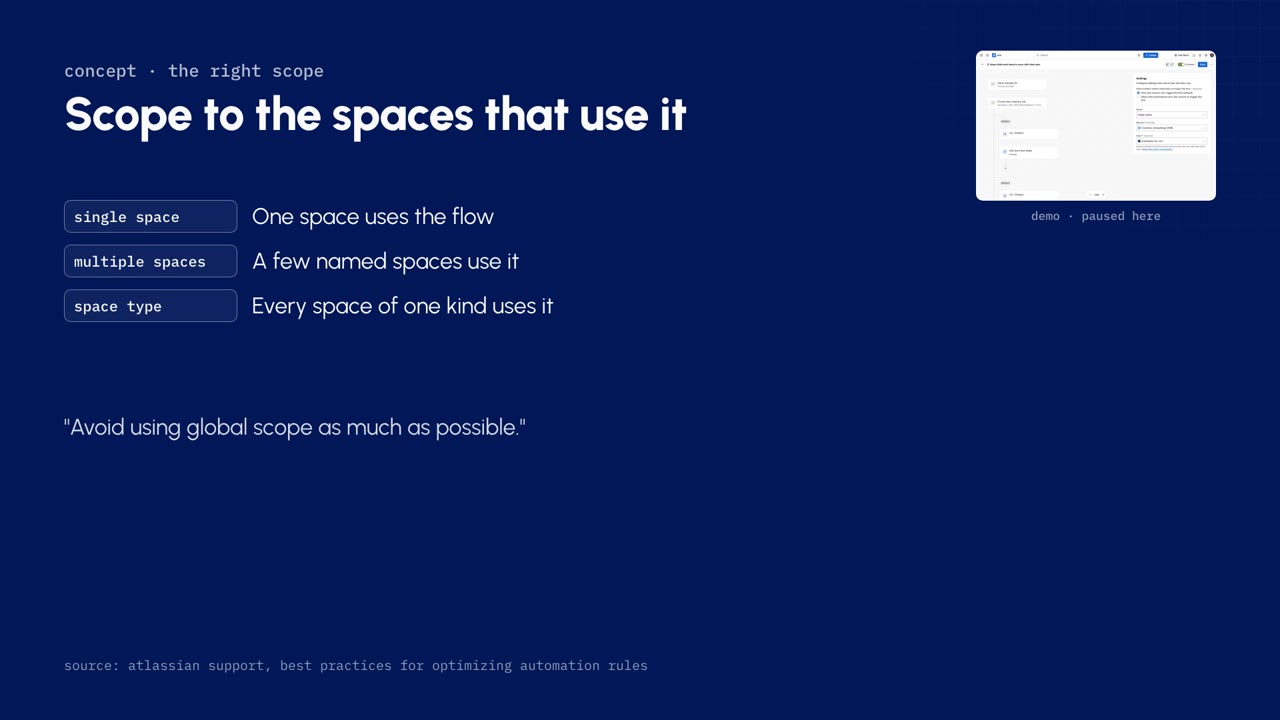
- Open the menu at the top right of the flow, then Settings.
- Open the scope list and choose single space.
- Choose the space: type its name and pick it. On the demo site, Customer onboarding.
An edit in any other space now never reaches the flow. Atlassian's own advice is to avoid global scope wherever you can.
| Who uses the flow | Scope |
|---|---|
| One space | Single space |
| A few named spaces | Multiple spaces |
| Every space of one kind | Space type |
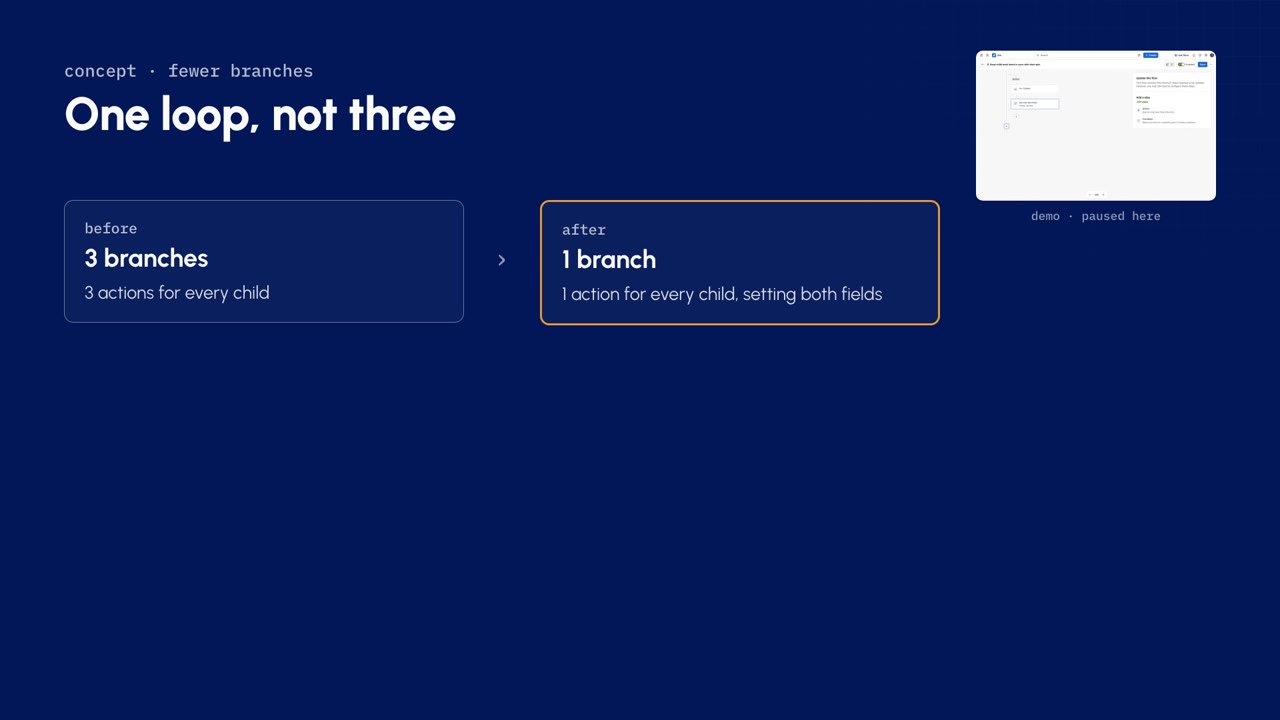
Fewer branches
- Zoom out on the canvas until all three branches fit.
- Open the edit action in the first branch. It sets the priority.
- Open choose fields to set and add due date.
- Open the due date's menu, choose copy, then pick trigger work item: the epic that changed.
- Click next. The one action now copies both fields.
- Point at the second branch and click its delete icon.
- Delete the third branch, the comment, the same way. The change already shows in each child's history.
| Branches | Actions for every child | |
|---|---|---|
| Before | 3 | 3 |
| After | 1 | 1, setting both fields |
Rule of thumb. When several actions loop over the same work items, put them in one branch. When one action can set several fields, use one action.
Save and measure
- Click save. The fixed flow is live.
- Test it: open an epic in the space the flow is scoped to and change its priority.
- Back in Global automation, open the flow, then its audit log, and open the new run.
- Expand each step: the trigger, the condition, the branch and the edit inside it.
| The test edit | Steps |
|---|---|
| Trigger: field value changed, on the epic | 1 |
| JQL condition, passed | 1 |
| Branch | 1 |
| One edit for each of the four children | 4 |
| Total | 7, where the same edit cost 16 before |
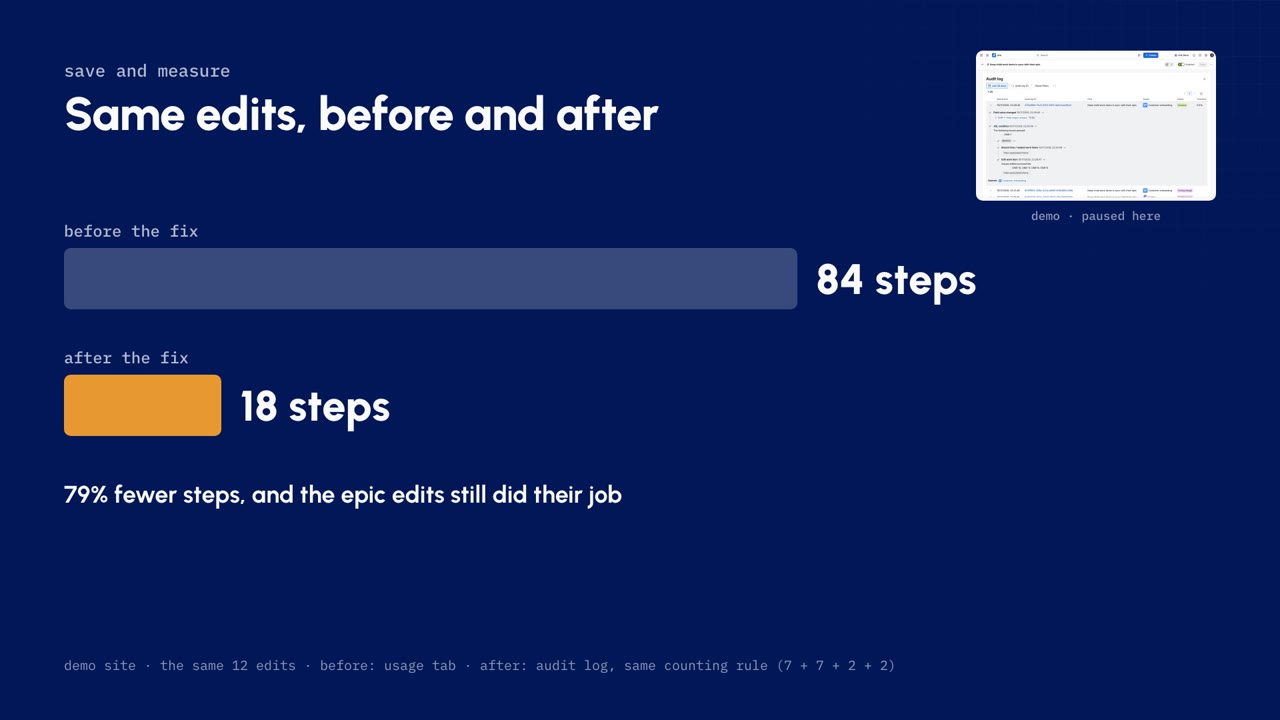
Then the same twelve edits were replayed on the demo site. Before the fix they cost 84 steps; after it, 18. The epic edits still did their job. The rest stopped at the condition or never started the flow at all.
Make it a habit. Run the same check on your top five flows every month.
Check what stuck
5 questions on this lesson. Pick an answer to see whether it is right, and why. Nothing is sent anywhere and there is nothing to sign up for.
Who teaches it

Riley Venable
VP of Services, Atlas Bench
Full-stack engineer, Atlassian Certified Instructor, and Atlassian Community Champion who works on the layer underneath the tools: identity, infrastructure, and the systems that decide whether AI can be trusted with them.
Keep going
Jira automation essentials
A free, self-paced course for Jira admins on automation step usage: how Atlassian counts steps, how to find the flows that spend the most, and how to cut one down without changing what it does. Each lesson is a short video with the concepts written out beside it and a quiz to check what stuck.
ServiceChange management programs
Change management programs around migrations, Jira Service Management rollouts, and agent pilots, measured by adoption rather than by go-live.
ServiceCustom development
Custom Forge apps, ScriptRunner automation, and integrations for Jira and Confluence, built to run with the same identity and change record as your site.
ProductJira
What Atlas Bench does with Jira: migration, standardization of workflows and fields, hierarchy design, and the permission model underneath.