

Creating a Bug Form in Jira Service Management
Learn how to build a dynamic bug report form in Jira Service Management using built-in forms and conditional logic to streamline.

In Jira Service Management (JSM), using forms can significantly streamline how users report bugs by guiding them to provide all necessary information. A well-designed bug report form ensures that critical details are captured upfront, reducing back-and-forth and accelerating resolution. In this guide, we’ll walk through creating a dynamic "Bug Report" form in JSM using native form features, including conditional logic to show or hide fields based on user input. This step-by-step process is based on our experience as Atlassian experts helping clients optimize their JSM projects, and it will help you build a form that makes bug reporting more efficient and user-friendly.
Step 1: Access Your Project’s Forms Settings
-
Open your JSM project: Log in to Jira Service Management Cloud and navigate to the service project where you want to add a bug report form.
-
Go to Project Settings: In the project’s sidebar, scroll down and click on Project settings. This opens the configuration area for the project.
-
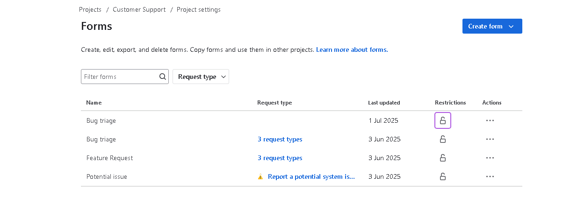
Select Forms: Within the Project settings menu, find and click on Forms. This section is where you can create and manage forms for the project. You should now see any existing forms and an option to create a new one.
Step 2: Create a New Form
Once you’re in the Forms section, you can start building your bug form:
Begin by clicking the “Create form” button. Jira will prompt you to name the form and choose a starting template. Give the form a clear, descriptive name like “Bug Report Form” so its purpose is obvious to your team and customers. For this guide, select the option to start with a blank form (this allows you to add exactly the fields you need from scratch). After naming the form and choosing a blank template, you’ll enter the form builder interface ready to add fields.
Step 3: Add Essential Fields to the Form
With a blank form ready, the next step is to drag-and-drop the fields that will collect all relevant bug information. For each field, decide on the field type (text, dropdown, file upload, etc.), make fields required as needed, and link them to corresponding Jira issue fields so the data goes into the issue. Key fields to include in a bug report form are:
-
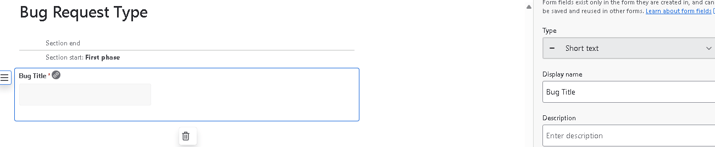
Bug Title: Add a short text field for a brief summary of the bug. Mark this field as required and link it to the Jira issue Summary field (so it becomes the issue title).
-
Severity: Use a dropdown field named "Severity" to capture the bug’s impact level. Provide options such as Critical, High, Medium, and Low, and set this field as required. Map it to a custom Jira field for severity or priority (if one exists) to integrate with your workflows.
-
Impacted Area/Module: Include a dropdown for the product area or module affected by the bug (for example: User Authentication, Dashboard, Reporting, Integrations). Populate the choices with areas relevant to your application and mark it required. This can link to a Component field or a custom field in Jira that tracks the affected module.
-
Steps to Reproduce: Add a multi-line text field (long answer) where the reporter can detail the exact steps to reproduce the issue. Link this to the Description field of the Jira issue (or another text field) to ensure the development team can see these steps clearly.
-
Expected Behavior: Another long text field for what the reporter expected to happen. This helps clarify the discrepancy. You might link it to the Description or a dedicated custom field for expected outcome.
-
Actual Behavior: A long text field for what actually occurred. Like Expected Behavior, this can be linked to Description or its own custom field. Having expected vs. actual behavior side by side helps in diagnosing the bug.
-
Environment Details: Include a long text field where users specify the environment (such as device, OS, app version, or browser) in which the bug occurred. Map this to a custom Environment field in Jira if you have one, to capture technical context.
-
Screenshots/Attachments: Add a File upload field to let users attach screenshots, error logs, or other files. This field will automatically attach uploaded files to the Jira issue. It’s extremely useful for visual evidence of the bug.
Step 4: Implement Conditional Logic with Sections
One powerful feature of JSM forms is the ability to show or hide parts of the form based on earlier answers. In our bug form, we can make certain fields appear only for high-severity issues. To do this, we’ll use a conditional section that’s triggered by the Severity field value.
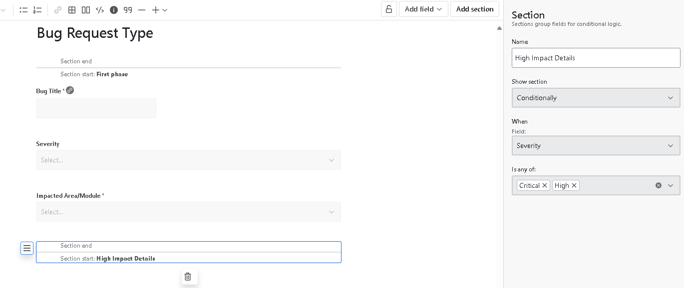
Start by adding a section to the form and naming it something like “High Impact Details.” This section will contain extra questions that should only be answered for critical or high-impact bugs. Next, configure the section’s visibility rules: open the section’s settings, enable conditional logic, and set the condition to display this section only if the Severity field is High or Critical. This means users reporting a serious bug will be asked for additional detail, while those reporting minor issues won’t see these extra fields (keeping the form shorter for them).
Now populate the High Impact Details section with any fields relevant to severe bugs. For example, you might add a “Business Impact Description” field (long text) and mark it as required. In this field, users can describe how the critical bug affects the business or users, valuable context for triaging major issues. You could also include a “Workaround (if any)” field where users can note any temporary fixes or bypasses they’ve discovered. This field can be optional. These conditional fields will only show up when Severity is set to High or Critical, ensuring that crucial information is collected for the most serious bugs without overburdening the standard bug report process.
Step 5: Attach the Form to a Request Type
After building and saving your form, the next step is to make it visible on the customer portal so users can actually use it when reporting bugs. In JSM, forms are tied to request types (the customer-facing issue types in the portal).
-
Save the form in the form builder if you haven’t already.
-
Navigate to Request types in your project’s settings (still within the same project settings menu).
-
Locate the request type that should use this form. For example, if you have a “Bug Report” request type (or perhaps an “Incident” type that you use for bug reporting), click the Edit button for that request type.
-
In the request type’s settings, find the section for Request form. There will be an option to use a form for this request type. Toggle this on (enable it).
-
From the dropdown of available forms, select your “Bug Report Form” (the name you gave the form in Step 2). This associates your newly created form with the request type.
-
Click Save changes for the request type. Now, when customers go to the portal and choose the Bug Report request, they’ll be presented with the form you built (instead of the standard fields layout).
Step 6: Test the Dynamic Bug Form
With the form attached to the portal, it’s important to test it to ensure everything works as expected, especially the conditional logic.
Go to your JSM customer portal and start a new request for the Bug Report (or whatever request type you attached the form to). As the form loads, try filling it out like a user would. For instance, begin by selecting a lower severity such as Medium or Low. You should notice that the “High Impact Details” section does not appear on the form for these selections. The form at this point will only show the standard fields (Title, Severity, Impacted Area, etc.). Now change the severity to High (or Critical). The form should instantly reveal the additional fields under High Impact Details (like the Business Impact Description and Workaround fields you configured). This confirms that your conditional logic is functioning: the extra fields show up only when needed.
Continue to fill in the rest of the fields on the form (enter a sample title, description, steps to reproduce, etc.), attach a test file if you want, and submit the request. After submission, go into Jira and open the issue that was created. Verify that all the information you entered on the form is captured correctly in the issue. You should see the summary, description (with steps, expected/actual behavior), severity, component/impacted area, and any attachments on the issue. If you selected a high severity, also check that the Business Impact and Workaround details appear on the issue. Everything from the conditional section should be saved when it was shown and filled. This testing step is crucial to ensure your dynamic form behaves correctly and collects the data you need.
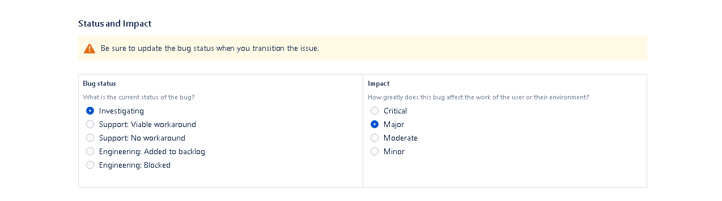
By following these steps, you have created a functional, dynamic bug report form in Jira Service Management. This form will improve your bug intake process by making sure reporters provide all the necessary details and by tailoring the questions to the bug’s severity. Your team will benefit from more complete bug reports, and users will appreciate a form that is straightforward when the issue is minor, yet thorough when the issue is critical.
Read next.
Non-human identities in Atlassian Cloud, explained
How to govern non-human identities in Atlassian Cloud: service accounts, API tokens, Forge apps, and Rovo agents, each with an owner, scope, and expiry.
October 1, 2026How to choose an Atlassian partner for a Jira migration
How to choose an Atlassian Solution Partner for a Jira migration to Cloud: what to verify, eight questions to ask, red flags, and a shortlist scorecard.
September 30, 2026The complete guide to agent readiness in Atlassian Cloud
Agent readiness for Atlassian Cloud: the five checks to run before you switch on Rovo agents, from identities and permissions to the off switch.
September 28, 2026How to review Rovo agent access in Jira and Confluence
A step-by-step access review for Rovo agents in Jira and Confluence: who can create them, who can use them, what they can change, and what gets logged.
The blog, weekly.
One email a week with what we published. No drip sequence, and you can leave in a click.