

Building a Knowledge Base in Confluence for JSM
Learn to build a Confluence knowledge base integrated with Jira Service Management and boost support efficiency with Atlassian’s AI.

A well-organized knowledge base is a critical asset for any team or support organization. It enables users to find answers quickly, reduces the volume of repetitive support requests, and ensures everyone has access to current, accurate information. Whether used internally by staff or externally by customers, a knowledge base built in Atlassian Confluence and connected to Jira Service Management (JSM) can significantly enhance efficiency, enable customer self-service, and improve collaboration across your organization. In this blog, we’ll explore how to structure your knowledge base in Confluence, connect it to JSM for seamless support, leverage Atlassian’s new AI virtual agent for automated help, and follow best practices to keep your knowledge base effective and up to date.
Structuring Your Knowledge Base
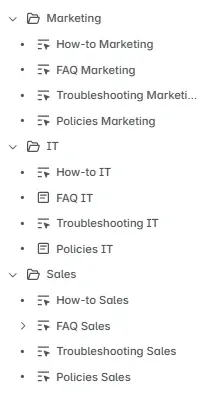
Maintaining clarity and easy navigation is key to an effective knowledge base. The best practice is to organize content into distinct sections (such as categories or teams), each functioning like its own folder or page tree in Confluence. This structure helps users browse relevant articles without getting lost. To ensure an intuitive layout, keep these tips in mind:
-
Organize related articles by function or topic: for example, have separate groups for How-To Guides, FAQs, and Troubleshooting articles.
-
Use clear, consistent page titles that describe the content (for instance, use a format like “How to Reset Your Password” for a how-to article). Consistent titles help users immediately understand what each article is about.
-
Add meaningful labels to each page to improve search and filtering. Tags such as internal, customer-facing, or how-to can indicate the intended audience or content type, making it easier to filter results later.
Confluence supports a hierarchical page structure (you can create pages within pages for nested topics) and robust labeling. By thoughtfully structuring content and using Confluence’s page hierarchy and labels, you ensure people can navigate your documentation easily and find answers with minimal effort.
Connecting Your Knowledge Base to Jira Service Management
One of the biggest advantages of using Confluence for your knowledge base is how it integrates with Jira Service Management. By linking your Confluence space to your JSM project, you enable customers and agents to access articles directly from the help center and even get article suggestions as they report issues. Here’s how you can connect a Confluence knowledge base to a JSM service project:
-
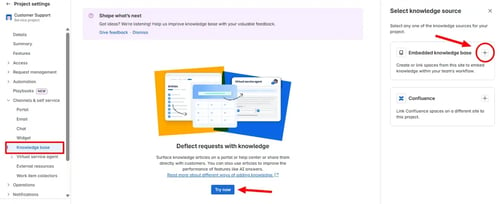
Open your JSM project settings: In Jira Service Management, navigate to the service project you want to integrate with your knowledge base. Click on Project Settings, then find the Knowledge Base section.
-
Select a knowledge source: In the Knowledge Base settings, choose to add a knowledge base. Select Confluence as the knowledge source for your project. If your Confluence space is on the same Atlassian site as JSM, you can choose the Embedded Knowledge Base option and pick the specific Confluence space to use.
-
Connect the space: Once you’ve selected the Confluence space, confirm the connection. JSM will now link that space as the project’s knowledge base. You may want to designate specific user permissions at this step to control who can create or edit articles from the service project.
After the knowledge base is connected, your articles become accessible through the JSM customer portal. Customers will automatically see recommended articles as they begin typing their issue into the portal’s request form. For example, if a user types “password reset” into the help request summary, the portal will suggest any knowledge base articles titled “How to reset your password” or with related keywords. To improve these suggestions, make sure your Confluence articles are labeled and categorized appropriately. Within the JSM project settings, you can organize articles into categories so that in the portal, users can browse articles under helpful headers like “Learn more about: Password Issues” or “Learn more about: Account Management.” This tight integration between Confluence and JSM means users get help faster and many common requests can be resolved by self-service, without an agent ever needing to intervene.
Restricting Access to Drafts
While building your knowledge base, there may be articles you want to keep private or in draft mode until they’re ready for a wider audience. Confluence allows you to control who can see and edit each page, which is very useful for managing drafts or internal-only documentation. To restrict access to a page in Confluence, open the page and click the padlock in the top-right corner to adjust Page Restrictions. From there, you can specify exactly which people or groups can view and/or edit that page. For instance, you might limit a draft article so only your documentation team can view it while it’s being written, keeping it hidden from customers or other departments.
If you connect your Confluence space to JSM, any pages that are still in draft or have restricted permissions will not be shown to customers on the portal. In fact, Jira Service Management has a Drafts section listing knowledge base pages that are not yet published to the portal. This way, your team can iterate on new articles or updates in Confluence, and only publish them to the live knowledge base once they’re reviewed and finalized. Restricting access during the drafting stage ensures that customers only ever see polished, approved content in the help center.
Embedding Files and Media in Articles
A plain text article can answer questions, but sometimes rich media can communicate solutions more effectively. Confluence makes it easy to enrich your knowledge base articles with a variety of embedded files and media so that users have all the information they need in one place. You can include things like how-to videos, screenshots, PDFs, spreadsheets with data, slideshows, and even live Google Docs or Sheets right inside your Confluence pages. For example, a how-to article might feature an embedded Loom video walking the user through a process step by step, or a troubleshooting guide could include a PDF diagram or an embedded Google Sheet for a checklist.
There are two simple ways to embed content into a Confluence page. The first method is to paste a link to the file or media directly into the page (using standard paste functions). Confluence will automatically convert many types of links into embedded content. For instance, pasting the URL of a YouTube or Loom video will create an embedded video player, and pasting a link to a Google Drive file will insert an interactive preview of that document. The second method is to use Confluence’s slash command to insert macros. By typing “/” on the page editor, you can search for macros like Media (for multimedia content), Attachments (to display files you’ve attached to the page), or Widget Connector (for embedding external web content). Selecting the appropriate macro will let you insert the content and customize how it appears. Using these embedding options, your knowledge base articles can become rich, self-contained guides; users won’t need to download files or navigate away to understand the solution, because all the relevant information (videos, charts, documents, etc.) is right there on the page.
Helping Customers Find Articles on the Portal
An integrated knowledge base is only useful if customers can easily discover the articles. Jira Service Management’s help center is designed to surface knowledge base content to customers in two key ways:
-
Browsing by Category: In JSM you can organize knowledge base articles into categories that display on the customer portal. These appear under a “Learn more about” section on the portal’s homepage or within the request form. By grouping articles into logical categories (for example, Account Issues, Troubleshooting Network, Using the New Software Feature, etc.), you provide a browsable menu of topics. Customers can click a category and see a list of related articles, which encourages exploration of self-help resources. This is great for helping users discover information even if they don’t have a specific question typed out yet.
-
Search Suggestions: When a customer does go to create a support request, the Summary field (where they type their question or issue) doubles as a search bar for the knowledge base. As the user types keywords, JSM will automatically suggest relevant knowledge base articles in real time. For instance, if the customer types "email setup issue," the portal might immediately show an article titled "How to Configure Your Email Account." The customer can click that suggestion to read the article, potentially solving their problem without needing to submit a ticket at all. This deflection mechanism relies on having well-titled, well-tagged articles so that the search can match user keywords to the right content.
By leveraging both categorized content and smart search suggestions, your Jira Service Management portal becomes a powerful self-service hub. Customers get answers faster, and your team spends less time answering routine questions that have published solutions.
Enabling Rovo for Automated Support
Beyond passive self-service, Atlassian now offers an AI-powered virtual agent (code-named Rovo) that works alongside your knowledge base to provide automated support. Rovo is essentially an intelligent chatbot built into Jira Service Management that can use your Confluence knowledge base articles to answer customer questions conversationally. Enabling this feature can reduce the need for human intervention on common issues even further, providing 24/7 assistance and quick answers through an interactive chat experience.
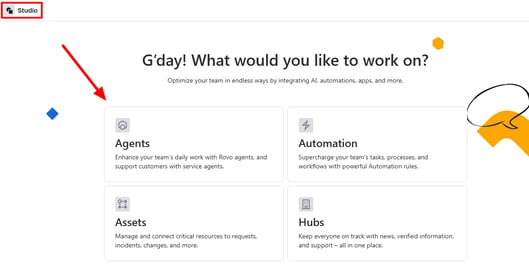
Setting up Rovo for your service project is straightforward once your knowledge base is in place. In your Atlassian cloud administration (often referred to as Atlassian Studio in the context of AI features), navigate to the Agents section and find Service Agent; this is the virtual agent configuration. Add or enable the service agent (Rovo) for your JSM project by selecting your project from the list. Once enabled, go into your project’s settings and you’ll notice a new section called Virtual Service Agent. Under this section, there’s an AI Answers page where you can connect your Confluence knowledge base. Simply select your Confluence space in AI Answers, and the system will grant Rovo access to all the articles in that space for reference.
With Rovo connected to your knowledge base, customers will have the option to get help from a virtual agent on the portal. For example, on your help center page, a customer might see a chat prompt or a search bar that engages the virtual agent. When they enter a question, Rovo will interpret it using natural language processing and respond with the content of a relevant knowledge base article (or a summary of it). The experience is similar to chatting with a live agent, except the answers come instantly from your documentation. If Rovo finds an article that addresses the query, it will present that information; if it cannot help, it can hand off the conversation to a human agent or allow the customer to submit a ticket as usual.
To get the most out of Rovo, you should also enable it on all support channels you use. For instance, if your organization allows customers to email support requests, you can let Rovo handle those as well. In the Virtual Service Agent settings for your project, look for the Channels options. There, you can connect the email channel so that when an incoming email request matches knowledge base content, Rovo will automatically reply via email with a solution or clarification question. Enabling the virtual agent on web, chat, and email channels ensures a consistent, AI-assisted support experience across the board. Customers get quick answers around the clock, and your team can focus on more complex issues while routine questions are handled by the AI using your curated knowledge base.
Knowledge Base Best Practices
Building and integrating your knowledge base is not a one-time project; it’s an ongoing effort. Here are some best practices to keep your knowledge base effective and continually improving:
-
Start with what matters most: When launching a knowledge base, begin by creating articles that cover your most frequently asked questions and top support issues. By populating answers to the most common problems first, you’ll immediately start deflecting a significant portion of incoming tickets. This also demonstrates instant value, as both customers and support agents will see quick wins from the new knowledge base.
-
Build a comprehensive resource: Aim to develop a large and comprehensive knowledge base over time. A broader base of articles means more of your team’s and customers’ questions are answered without escalation. Additionally, a rich library of information improves the effectiveness of AI-driven tools like Rovo: the more documentation the virtual agent can draw from, the more accurate and helpful its responses will be. Don’t hesitate to include edge-case issues or detailed how-to guides; even if they’re used less often, having them searchable in the knowledge base can save a lot of effort when those situations do arise.
-
Never stop improving: Treat your knowledge base as a living resource. Use Confluence and JSM’s built-in reporting to track which articles are being viewed frequently and which search queries customers are making on the portal. Identify content gaps by looking at tickets that could have been solved by an article but weren’t (for example, if a certain issue keeps resulting in support tickets, consider adding or updating an article about it). Pay attention to feedback mechanisms too: if your portal allows users to rate articles (thumbs-up or thumbs-down), review those ratings to see which articles might be confusing or unhelpful. Regularly update articles for accuracy and clarity, and add new articles as your products, services, or common questions evolve. Continuous improvement ensures your knowledge base stays relevant and valuable, leading to higher self-service success rates and fewer repetitive tickets over the long term.
By implementing these practices, your organization can develop a knowledge base that not only empowers users to find solutions on their own but also grows smarter and more effective over time. The result is faster answers, reduced workload for your support team, and a better experience for both customers and employees who need help.
Read next.
Non-human identities in Atlassian Cloud, explained
How to govern non-human identities in Atlassian Cloud: service accounts, API tokens, Forge apps, and Rovo agents, each with an owner, scope, and expiry.
October 1, 2026How to choose an Atlassian partner for a Jira migration
How to choose an Atlassian Solution Partner for a Jira migration to Cloud: what to verify, eight questions to ask, red flags, and a shortlist scorecard.
September 30, 2026The complete guide to agent readiness in Atlassian Cloud
Agent readiness for Atlassian Cloud: the five checks to run before you switch on Rovo agents, from identities and permissions to the off switch.
September 28, 2026How to review Rovo agent access in Jira and Confluence
A step-by-step access review for Rovo agents in Jira and Confluence: who can create them, who can use them, what they can change, and what gets logged.
The blog, weekly.
One email a week with what we published. No drip sequence, and you can leave in a click.