

Notion to Confluence: A 2025 Migration Guide
Export your Notion workspace as a .zip file with Create folders for subpages and Export comments enabled, then upload it in Confluence through Spaces > Import from other tools > Notion. Page hierarchy, text formatting and tables are generally preserved, but comments, some images, widgets and macros may require manual intervention after the migration.

Notion-to-Confluence Migration Documentation
This document provides a review of content migration from Notion to Confluence, highlighting the most effective method to ensure the fidelity and functionality of the migrated data. the existing pain-points and what can be improved in the future as January/2025
Features Evaluated in the Migration Process
The migration involves transferring various types of content from Notion to Confluence, including:
-
Text with font styles and sizes
-
Lists and tables
-
Internal and external links
-
Macros and embedded widgets
-
User comments
-
Page hierarchy and structure
The goal is to ensure that all these elements are transferred as accurately as possible while minimizing post-migration adjustments.
Steps for a Successful Migration
1. Prepare the Notion Content
-
Navigate to Workspace > Settings > Export Content.
-
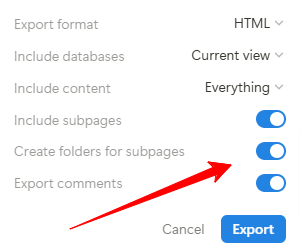
Ensure the following export settings are enabled:
-
Create folders for subpages
-
Export comments
-
-
Export the content as a .zip file.
-
Select the parent page of your Notion workspace to include all nested subpages.
2. Clean Up the Confluence Environment
-
Delete any previously created spaces in Confluence to ensure a clean slate.
-
This prevents duplicate content or inconsistencies during the import process.
3. Import Content into Confluence
-
In Confluence, go to Spaces > Import from other tools > Notion.
-
Upload the exported .zip file.
-
Choose the appropriate import option:
-
Entire Notion workspace for a comprehensive import.
-
Selected page with subpages for specific sections of your Notion workspace.
-
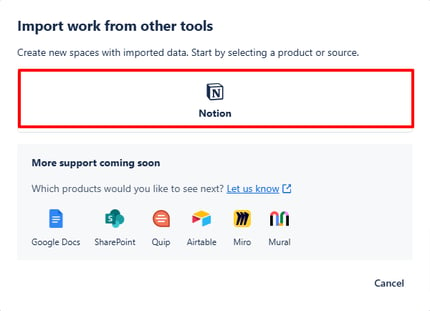
To follow a step-by-step guide of the migration method you can go to the article: https://atlasdev.atlassian.net/wiki/spaces/ABT/pages/265781249
4. Verify the Migration
After performing the migration this is what we got.
|
Feature |
Observations |
Notion |
Confluence |
|---|---|---|---|
|
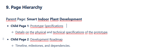
Titles |
Page titles and hierarchies |

|

|
|
Fonts |
Fonts and sizes are preserved |

|

|
|
Links |
Internal and external links works perfect. |

|

|
|
Images |
Some images were migrated, however their size changed, and the other one do not appear. |


|

|
|
Widgets and Interactive Elements |
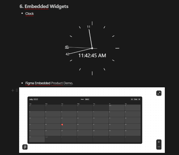
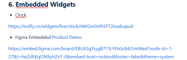
Widgets are now links, the URLs works. Interactive elements do not function. |
|
|
|
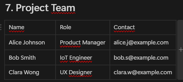
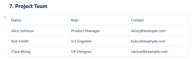
Tables |
The table was successfully migrated |
|
|
|
Comments |
Comments do not appear. |

|
|
|
Macros |
Macros and complex templates with movable options do not function as expected. in Notion, we had a calendar, Kanban boards, projects, assignees, and other interactive elements. These features did not transfer effectively during the migration. |

|
 |
|
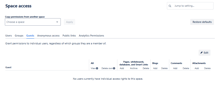
Users (Guests) |
Users that are guests are not migrated |

|
|
|
Users (Admins) |
Users that are admins are migrated, however they do not receive any email. |

|

|
|
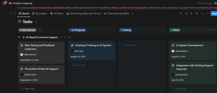
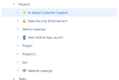
Kanban Board |
Kanban board (Inside the Product Roadmap) was converted into a table, each built-in project became an inner page in Confluence. |
|
 |
Unsupported Features.
The following features are either will often show up as plain text or similar after the import, or are not supported, table taken from the FAQ document, as of January, 2025.
|
Notion |
Confluence |
|---|---|
|
Audio (embedded link) |
Plain link |
|
Block equation |
Plain text only |
|
Breadcrumb |
Unsupported |
|
Button |
Unsupported |
|
Callout |
Emoji and plain text |
|
Code block |
Plain text |
|
Code: Mermaid (diagram) |
Plain text |
|
2 columns |
Single column |
|
Customized text (text color, background color) |
Stylized text |
|
Database child page properties |
Table |
|
Embed (e.g. Figma) |
Plain text |
|
Inline equation |
Plain text |
|
Link to page |
Hyperlink |
|
Page comments |
Unsupported |
|
Page emojis |
Page emojis |
|
Reminder |
Date |
|
Toggle heading |
Expand |
|
Synced block |
Excerpt |
|
Table of contents |
Hyperlinked text |
|
To-Do list |
Bulleted list |
|
Toggle list |
Expand |
|
Table customization |
Unsupported |
|
Web bookmark |
Hyperlinked text |
|
Video (embedded link) |
Hyperlink |
Important Aspects
Important Note on Macros and Complex Templates:
Macros and complex templates are currently not supported. Attempting to import them into Confluence may disrupt the entire work environment. For example, as illustrated below, multiple unnecessary pages were created due to a complex template.
User Importation:
When importing users, ensure they are designated as admins, not guests. This is the only way to successfully import them into Confluence.
Image Display Post-Migration:
Some images may display correctly after migration, while others might appear as URLs.
Private Pages:
Private pages will remain private post-migration, provided they are restricted by the importing user.
Comments:
Regardless of what is stated in the document, comments migration is not a feature yet.
Widget Migration:
Widget migration is not supported. After performed, widgets will appear in the text as URLs
Conclusion
Migrating from Notion to Confluence requires thorough planning and meticulous validation to ensure the successful transfer of content. While essential elements such as page hierarchy, text formatting, and table structures are generally preserved, certain features,such as the exclusion of comments, resizing or loss of images, and the incompatibility of widgets or macros, may require manual intervention to address post-migration. Even though there is an existing tool in Confluence to migrate from Notion as January/2025 It has not reached its optimal state yet.
Key takeaways for a successful migration include:
-
Thorough Preparation: Ensuring proper export settings in Notion and a clean slate in Confluence are critical for a smooth process.
-
Verification and Adjustments: Post-migration validation is essential to identify and correct discrepancies, particularly for unsupported or partially migrated features.
-
Documentation for Improvement: Maintaining a record of migration challenges and resolutions helps refine processes for future migrations.
By following the outlined steps and recommendations, the migration process can be completed efficiently while minimizing disruptions. However, understanding the limitations of the platforms and being prepared for manual interventions will help ensure the content is fully functional and aligned with organizational requirements in Confluence.
This article was made with the help of the following Atlassian Articles:
Read next.
What Is Identity Debt in Atlassian Cloud Migration
Learn what identity debt means for Atlassian cloud migration and how to audit unowned accounts, stale permissions, and legacy access risks.
September 21, 2026Rovo Agent Governance in Atlassian Cloud: 2026 Guide
Learn how to govern Rovo agents in Atlassian Cloud with identity controls, Guard policies, workflow guardrails, and audit trails for enterprise AI adoption
September 19, 2026What Is Rovo Agent Governance in Atlassian Cloud
Learn how Rovo agent governance works in Atlassian Cloud, from permission models to admin controls, and configure AI agents securely.
April 16, 2026Change Management in Jira Service Management: A Guide
See how to manage organizational change effectively with Jira Service Management, using proven strategies for lasting adoption across teams
The blog, weekly.
One email a week with what we published. No drip sequence, and you can leave in a click.