

Miro to Confluence Whiteboards: A 2025 Migration Guide
In Miro, choose Board, Export, Save as image and export it as a vector, then drag the exported file onto a Confluence whiteboard and select Miro when asked where the files are from. Because a board can only be migrated as an image, consolidate as many boards as possible into one first, and note that attachments and comments are not supported.

contents
Whiteboards in Confluence are powerful and versatile tools that enable users to manage workflows, design processes, and enhance collaboration seamlessly. While Miro is widely used and offers extensive features, this guide will show you how to migrate from Miro to Confluence Whiteboards and how you can maximize its benefits for improved productivity and teamwork.
Migration Guide
To perform a Miro board migration we must go to; Kebab Menu>Board>Export>Save as image.
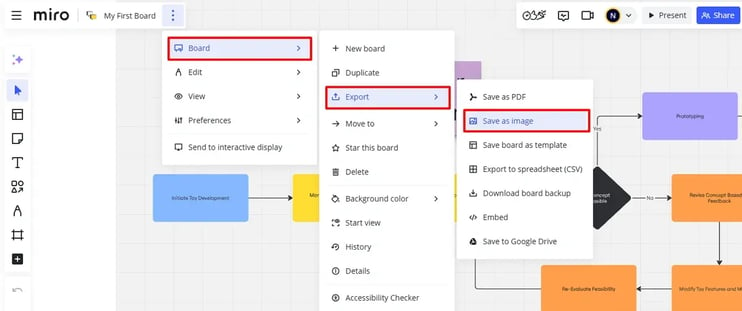
After we’ve clicked the option ‘Save as image’ it will direct us to a different Menu.
There we must choose the option to Export the image as a Vector and select the area to be migrated.
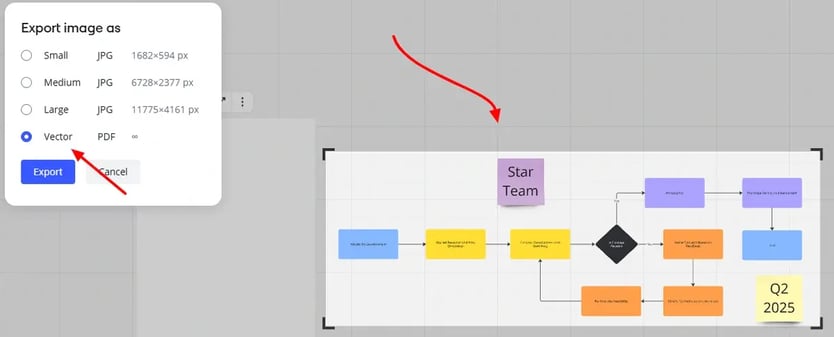
After we’ve chosen our job in Miro the PDF will be exported. On our Atlassian Instance we will go to Confluence Whiteboards and either on an existent document or a new one we’ll drag our recently exported to Whiteboards and drop it.
After dropped this message should pop up: “Where are your files from?”, We select Miro.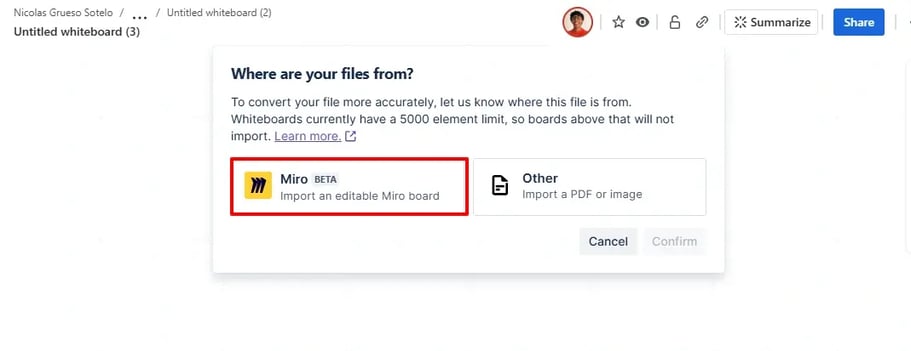
Migration Evaluation
lightweight Instance.
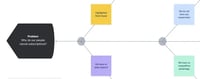
In this trial two migrations were performed with two different instances, the first one is including only a workflow, sticky notes, and text.
How does the Lightweight board looks?
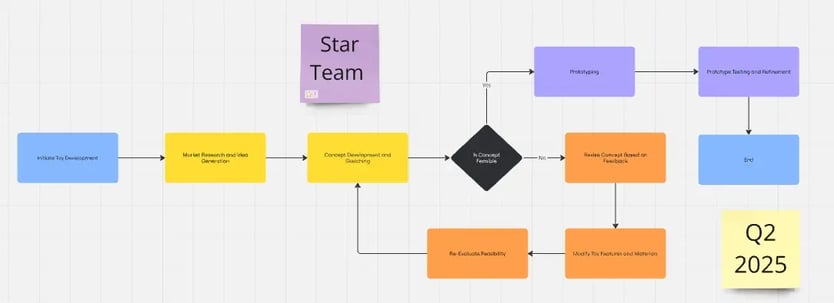
What’s the outcome?
The migration was 100% successful. Each element contains the correct information, is fully editable and movable, and retains the original colors from Miro. Special items, such as emojis and sticky notes, appear as expected.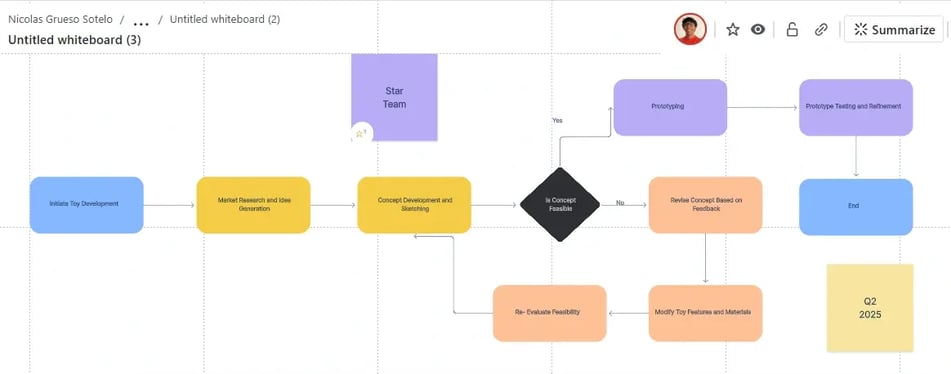
Rich Instance
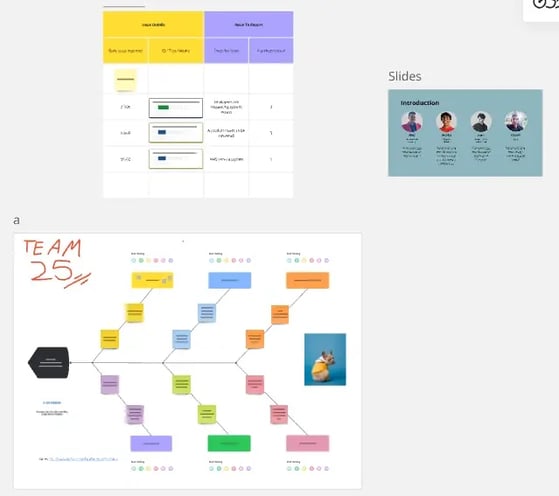
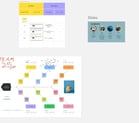
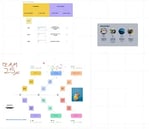
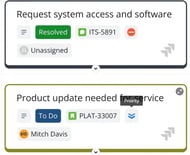
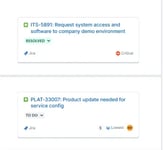
In the most comprehensive instance, there are three distinct boards, each containing a variety of elements. These include images, attachments, URLs, handwritten text, sticky notes, Jira issues, and detailed descriptions.
How does the Rich Instance looks?
What’s the outcome?
The following table evaluates how each feature was migrated and compares them between Miro and Whiteboards.
|
Feature |
Explanation |
Miro |
Confluence Whiteboards |
|---|---|---|---|
|
Board Display migration is successful. |
Addresses the overall appearance of the instance, including table spacing, coherence, and symmetry in comparison to the original board. |
|
|
|
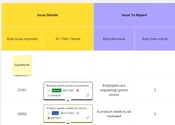
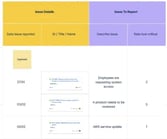
Text migration was succesful |
Evaluates text lines, font sizes, and formatting. |
|
|
|
Links function correctly |
This section assesses whether a hyperlink was successfully migrated. |

|
|
|
Images were migrated. |
Evaluates whether images were migrated successfully, their appearance, placement, and size. There is an exception* |
|
|
|
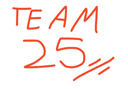
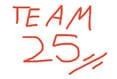
Hand-written text was successfully migrated |
In Miro, users can handwrite or draw directly on the board, whereas in Confluence, these elements appear as images. |
|
|
|
Sticky notes and forms were correctly migrated |
In Miro, sticky notes can be placed freely anywhere on the board. Forms are essential for organizing and defining workflows. |
|
|
|
Jira Issues were correctly migrated |
In Miro, you can link Jira issues and display them on your board to track progress. |
|
|
|
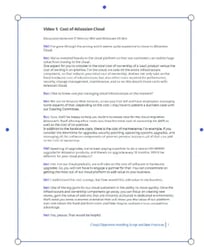
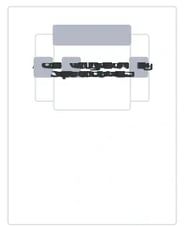
Attachments were not succesfully migrated |
A PDF attachment placed inside the Miro board is displayed as a flipbook, a feature not supported by Confluence Whiteboards. |
|
|
|
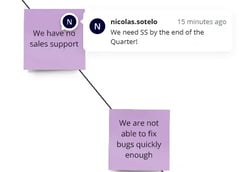
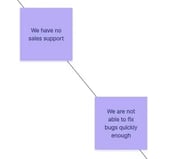
Comments were not migrated |
In Miro, you can add comments, but they do not appear after migration. |
|
|
|
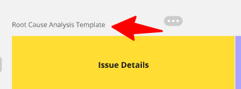
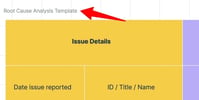
Headers were correctly migrated |
Each table can have its own header or title, which appears faded and is positioned in the top-left corner of the table or board.. |
|
|
|
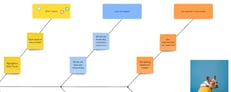
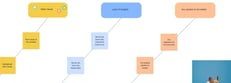
Color Palette was matched but not 100% accurate migrated |
Some colors differ slightly between Miro and Confluence due to variations in their default color schemes. Imported colors will appear similar but not identical. |
|
|
|
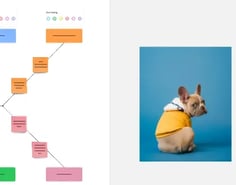
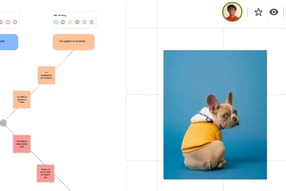
Editable Elements were correctly migrated |
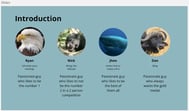
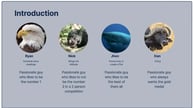
Blocks, text, and images are editable; you can move, drag, resize, and delete each element. In this example, we will move an image to the right and increase its size. |
|
|
|
Advanced Editable Elements were not correctly migrated |
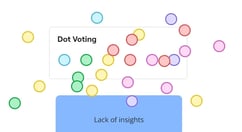
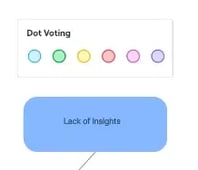
Advanced macros, such as placing colored dots anywhere on the Miro board, are not supported in Confluence Whiteboards and do not function the same way. Macros are migrated as images. |
|
|
Important Aspects to take into account:
-
Currently, migrating a Miro board as a file is not possible. Instead, it must be converted into an image. Therefore, we recommend consolidating as many boards as possible into a single macro board before migration, as it can then be transferred as an image.
-
Attachments are not supported and will not appear after migration.
-
Comments are not supported.
-
Workflows are expected to migrate with a 100% success rate.
-
Images may not always appear as expected and could overlap with text, requiring manual adjustments.
Additional comments
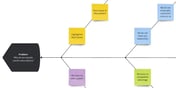
*referring to images: a diagram tree was placed in Miro when creating a diagram, however after migrated the image was not displaying clear as it had moved to the left overlapping text and images, we decided to get rid of it as it only happened with that image and the reason behind it was not found.
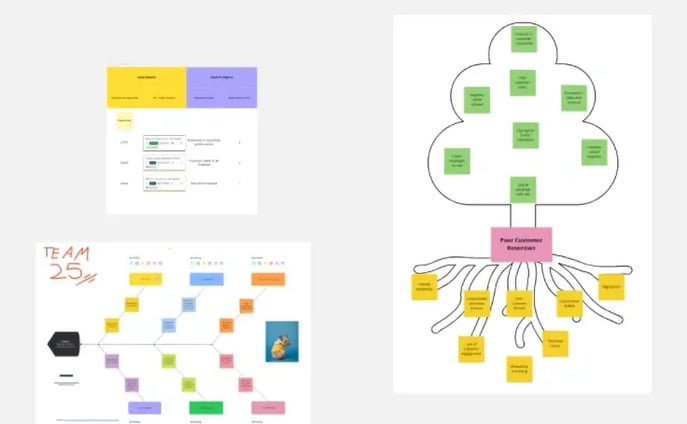
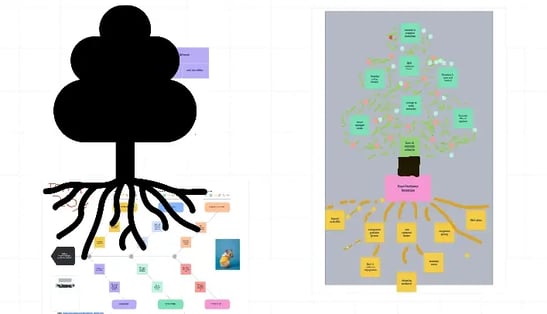
After migration, the tree skeleton appears as a black solid drawing in the wrong position. However, this is the only issue; other images, colors, shapes, and features function as expected.
Conclusion
Whiteboard is a great alternative to Miro within the Atlassian ecosystem. Its powerful migration tool can handle large migrations in just a few minutes. We highly recommend using it, and we are confident that, once fully developed, it will become even better and faster. Currently, it is still in its Beta stage.
References and Guides
Read next.
What Is Identity Debt in Atlassian Cloud Migration
Learn what identity debt means for Atlassian cloud migration and how to audit unowned accounts, stale permissions, and legacy access risks.
September 21, 2026Rovo Agent Governance in Atlassian Cloud: 2026 Guide
Learn how to govern Rovo agents in Atlassian Cloud with identity controls, Guard policies, workflow guardrails, and audit trails for enterprise AI adoption
September 19, 2026What Is Rovo Agent Governance in Atlassian Cloud
Learn how Rovo agent governance works in Atlassian Cloud, from permission models to admin controls, and configure AI agents securely.
April 16, 2026Change Management in Jira Service Management: A Guide
See how to manage organizational change effectively with Jira Service Management, using proven strategies for lasting adoption across teams
The blog, weekly.
One email a week with what we published. No drip sequence, and you can leave in a click.