

Bitbucket Dark Mode: How to Enable It
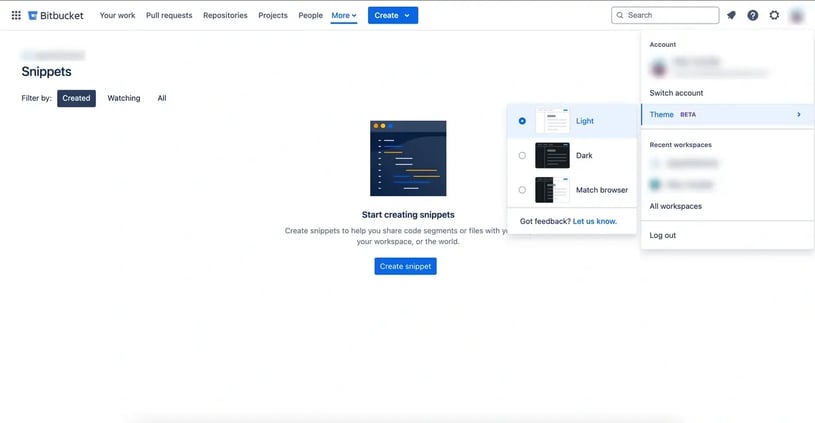
To enable dark mode in Bitbucket, click your profile icon, click "Theme" and toggle the Dark Mode option. Then save your preferences to apply the theme to your Bitbucket workspace, where dark mode reduces the amount of light emitted by the screen for a viewing experience most users find more comfortable.

contents
When developers aren't sifting through lines of code, they often collaborate and manage their version control systems, with Atlassian Bitbucket being a popular platform in this domain.
However, while focusing on crafting that perfect code may be intense, the eye fatigue from a glaring white interface is an unwanted side effect. This is where Bitbucket’s dark mode swoops in as the unassuming hero, providing a respite for weary eyes and boosting productivity. In this detailed post, we'll investigate the whys and hows of enabling dark mode in Bitbucket.
Understanding the Need for Dark Mode
Consider the hours that a developer spends in a day, week, or month staring at a monitor, with the predominant color being white due to traditional light-themed interfaces. The result? a host of problems ranging from dry eyes to visual discomfort or, worse, migraines that can dramatically affect productivity. It's not merely an aesthetic preference; it's about well-being and efficient work.
The Science Behind It
The concept is backed by science: our eyes are more sensitive to light in the blue spectrum, which is abundant in the daylight-mimicking white screens. Long exposure to this light, especially in dark environments, can lead to digital eye strain, affecting many people using digital devices. Dark mode modifies this by reducing the amount of light emitted by the screen, providing a more comfortable viewing experience for most users.
Switching to Dark Mode: A Game-Changer
Enabling dark mode in Bitbucket offers more than just reducing eye strain. It transforms the work environment, making it a more tactile place to work, focusing on the content at hand rather than the screen's brightness.

Added Benefits
Beyond the physiological benefits, dark mode can also help conserve energy, particularly if using a monitor with pixels that actually turn off in black areas. It provides a more consistent look across different software and services, given that many popular applications offer a dark theme too. However, perhaps the most significant advantage for most is that it looks incredibly cool.
Enhanced Productivity with Dark Mode
Productivity is about finding flow and maintaining it. Interruptions, even those as subtle as the discomfort stemming from lighting, can severely disrupt this flow. Dark mode combats this by creating an environment that's conducive to focus and can significantly impact your work output.
Focused and Efficient Work
With a darker setting, it’s easier to direct your attention where it’s needed. Dark themes lend a professional, minimalistic look, which can be useful for concentration. If your daily tasks include working on various screens and apps, a consistent dark theme can smoothen the transition from one platform to another and maintain your workflow’s pace.
Enabling Dark Mode in Bitbucket: Step-by-Step
The switch to dark mode in Bitbucket isn't a ship you must chase through deadly waters. It's as simple as a few clicks. Here's how to steer your way through the process effortlessly.
Step 1: Access Bitbucket Settings
Click on your profile icon and click "Theme".
Step 3: Choose Dark Mode
Toggle the Dark Mode option.
Step 4: Confirm Changes
Save your preferences to apply the dark mode theme to your Bitbucket workspace.
Wrap Up
Read next.
Non-human identities in Atlassian Cloud, explained
How to govern non-human identities in Atlassian Cloud: service accounts, API tokens, Forge apps, and Rovo agents, each with an owner, scope, and expiry.
October 1, 2026How to choose an Atlassian partner for a Jira migration
How to choose an Atlassian Solution Partner for a Jira migration to Cloud: what to verify, eight questions to ask, red flags, and a shortlist scorecard.
September 30, 2026The complete guide to agent readiness in Atlassian Cloud
Agent readiness for Atlassian Cloud: the five checks to run before you switch on Rovo agents, from identities and permissions to the off switch.
September 28, 2026How to review Rovo agent access in Jira and Confluence
A step-by-step access review for Rovo agents in Jira and Confluence: who can create them, who can use them, what they can change, and what gets logged.
The blog, weekly.
One email a week with what we published. No drip sequence, and you can leave in a click.